
Control Panel: Recognizing Microphone Input
What will be covered:
- How to test if my microphone is working.
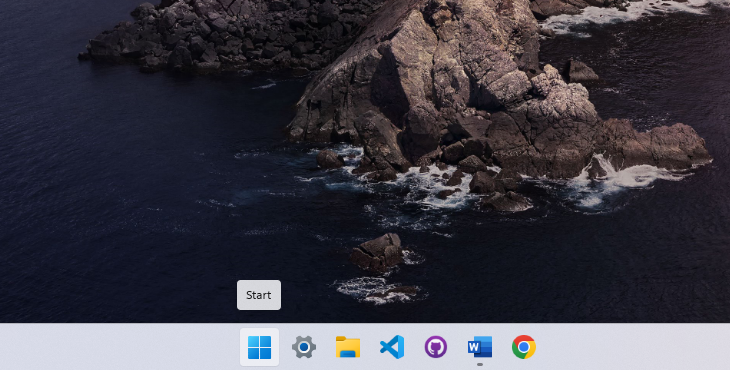
1. Open the Start Menu
Press the Windows key on your keyboard to bring up the Start Menu.
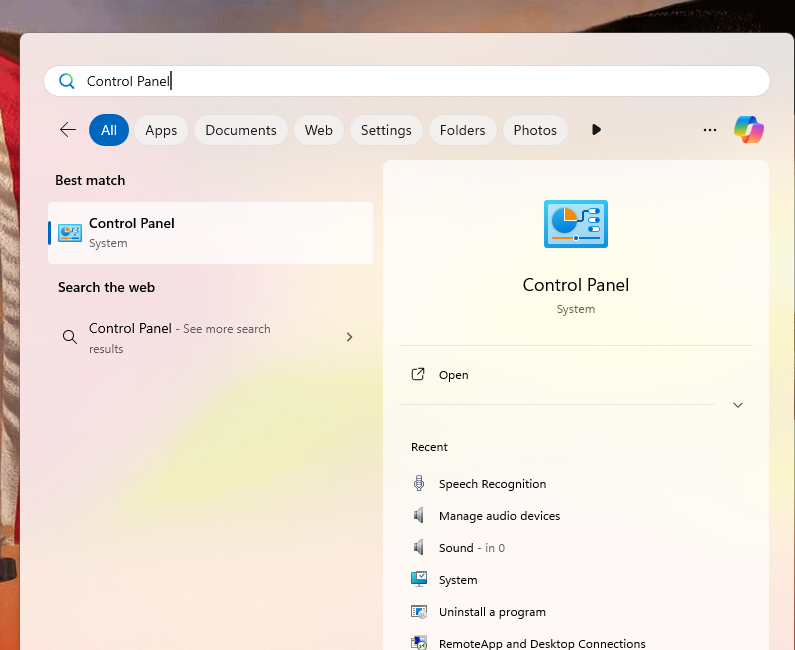
2. Search for Control Panel
Type Control Panel in the search bar, then press Enter to open it.
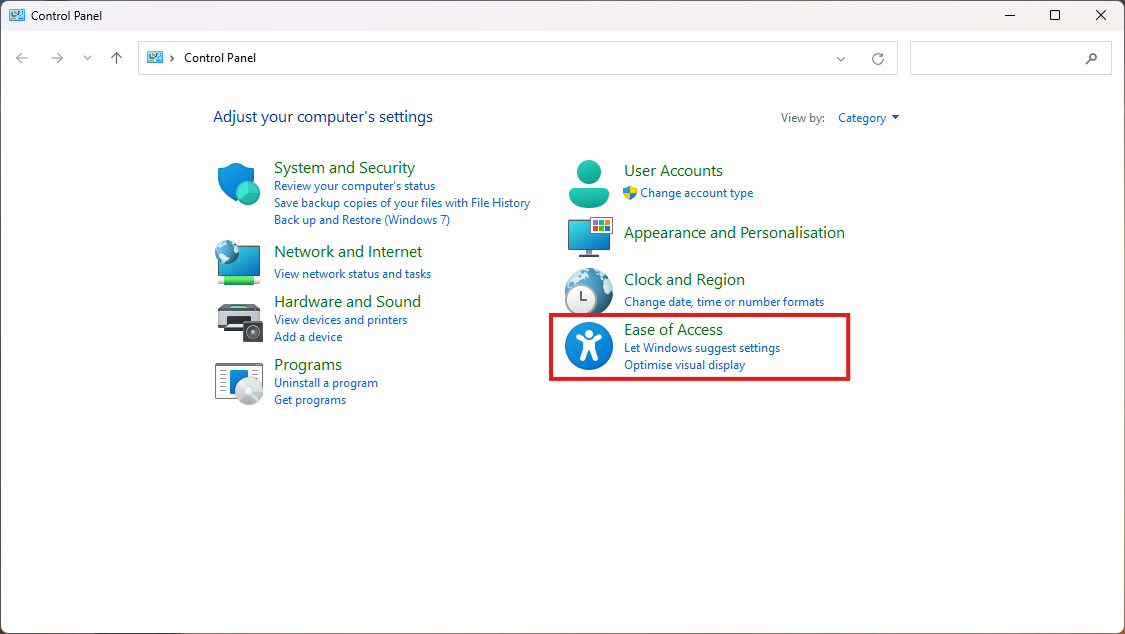
3. Open Ease of Access Tab
Once Control Panel has opened, Locate the Ease of access tab.
4. Open Speech Recognition
Click "Speech Recognition"
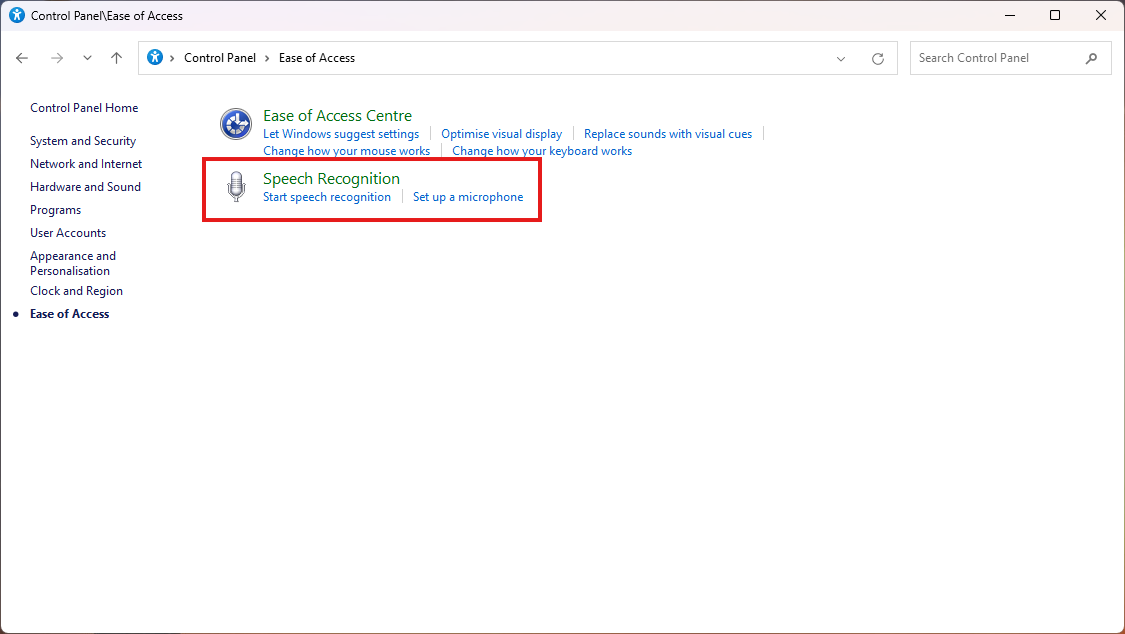
5. Set up Microphone
Click "Set up Microphone"
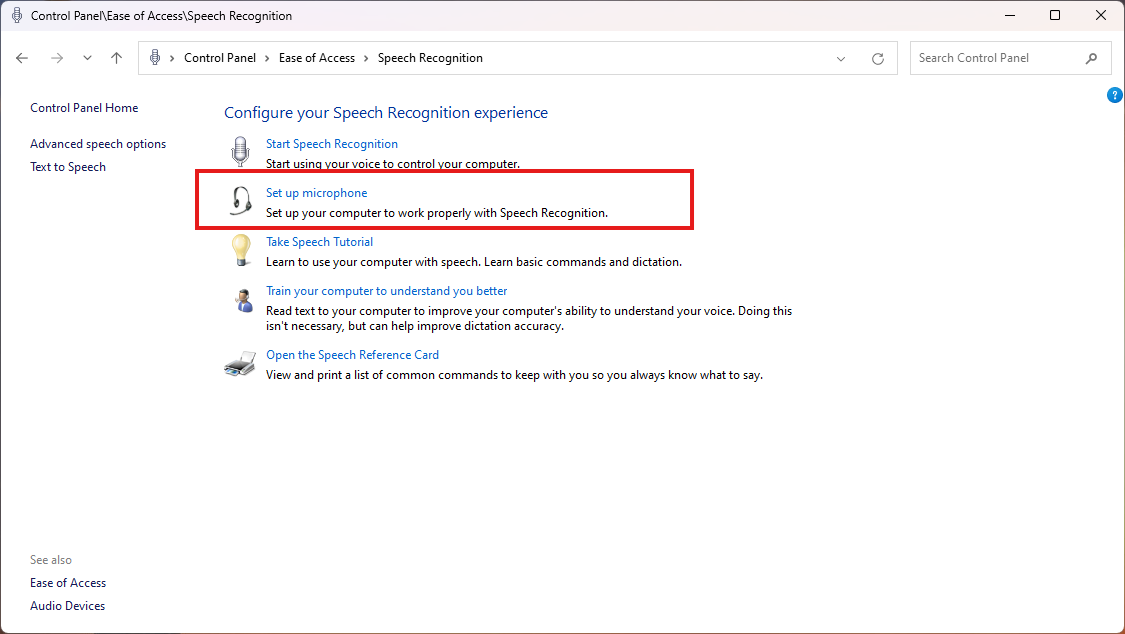
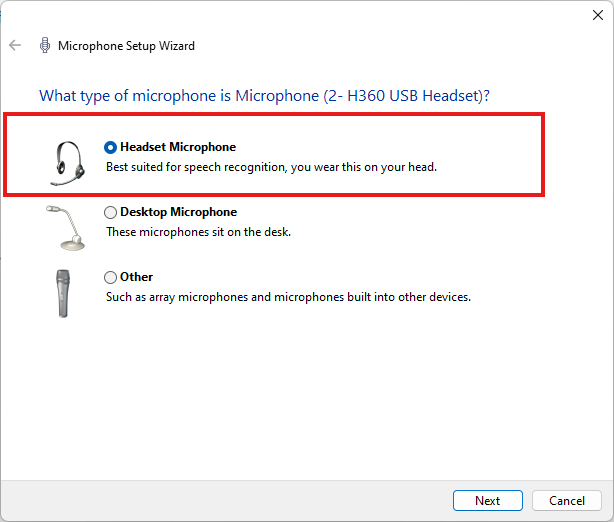
6. Microphone Device
Windows will auto-detect the microphone you have connected to the computer. Select the relevant Microphone device.
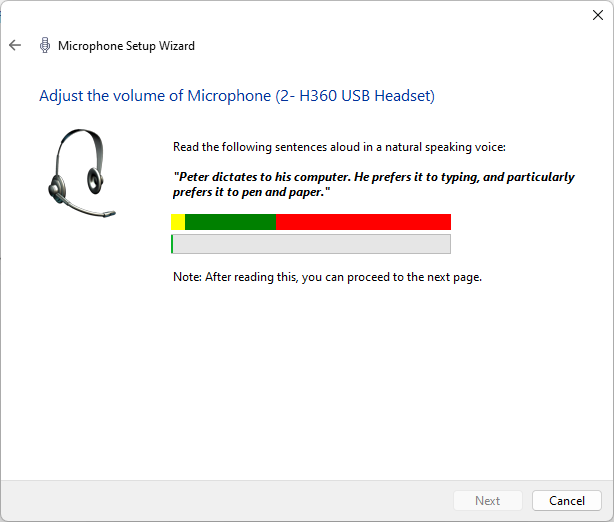
7. Test Audio Input
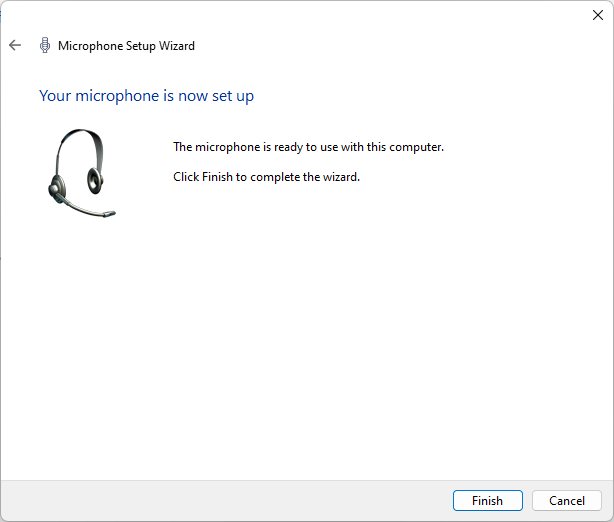
Now test the microphone. the sound level bar should go up and down based on your voice frequency picked up by the microphone. Red: Too loud, Green: Good Sound Level, Yellow: Quite. If you aren't any getting audio input the sound level would stay still at the bottom.
No Comments