
Outlook: Adding a Shared Mailbox (Outlook Web App + New Outlook)
What will be covered:
- How to open a shared mailbox
- How to set a shared folder / Mailbox
1. Open Outlook Web App
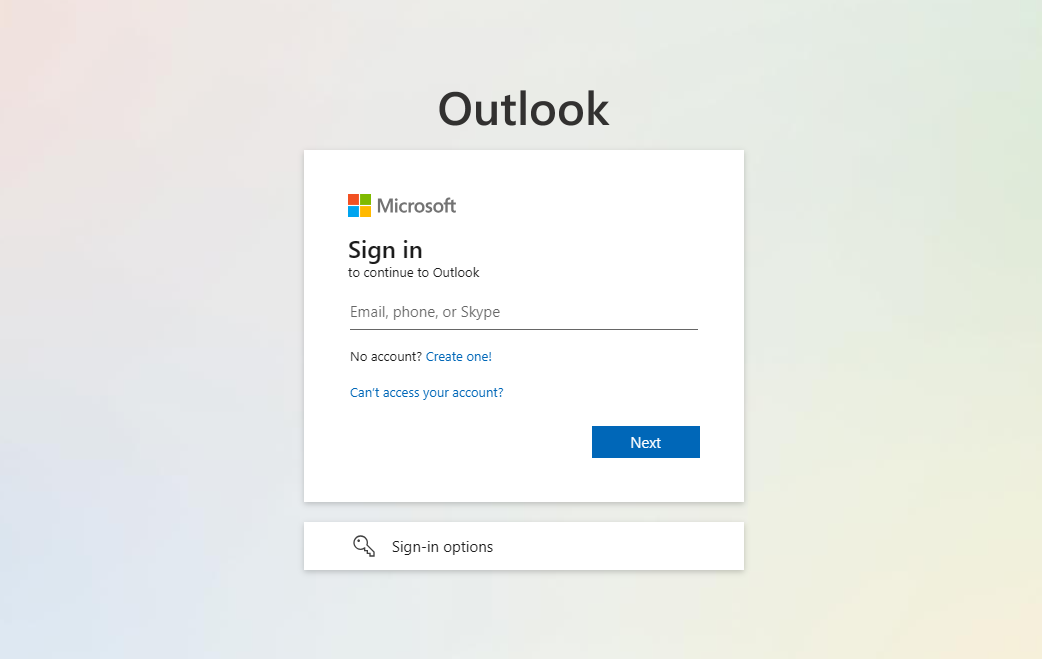
Navigate to the Office 365 portal (https://outlook.office365.com) and log in with your credentials.
Method 1
Open Shared Mailbox
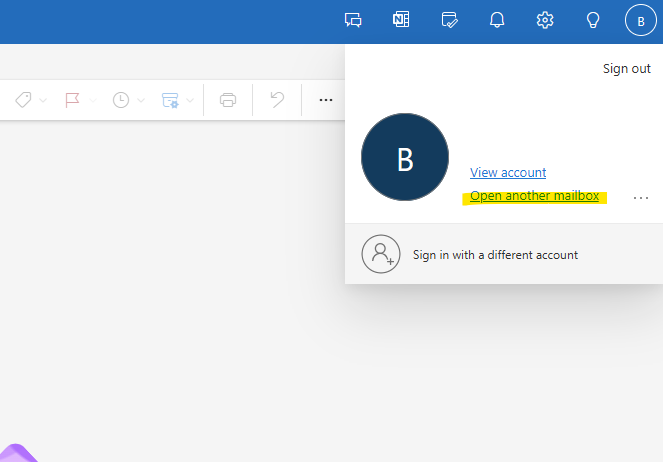
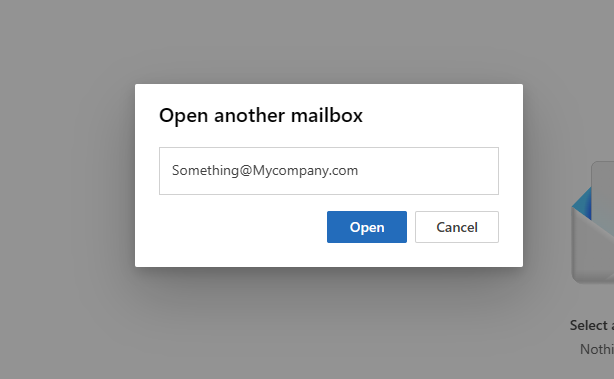
Click on your profile picture or initials in the top-right corner, Select Open another mailbox. Lastly Enter the email address of the shared mailbox and click Open. The shared mailbox will open in a new tab.
Method 2
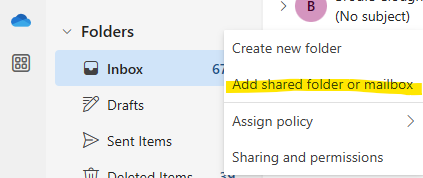
Add Shared Mailbox to Folder List
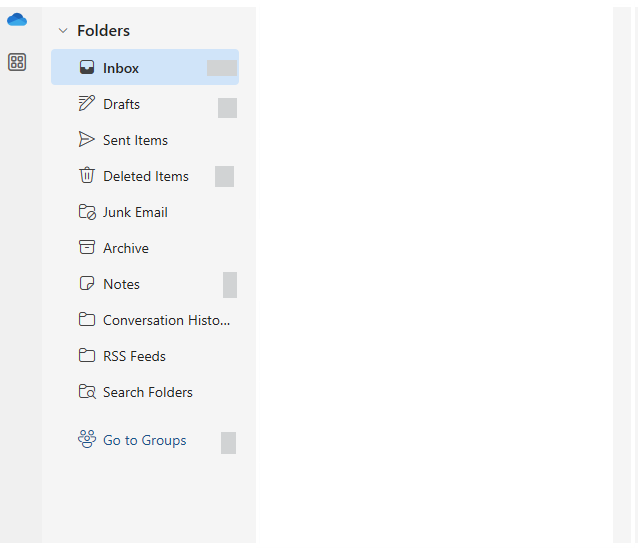
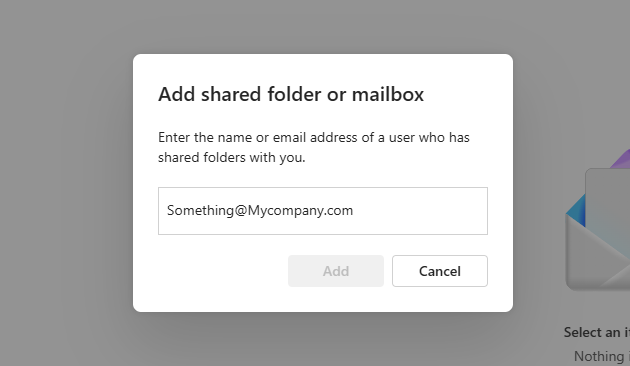
Right-click Folders in the left navigation pane. Right click the Folders and Select Add shared folder. Enter the email address of the shared mailbox and click Add.
No Comments