
Next Cloud: Sending Large emails
Quick guide for sending large emails.
1. Login to Next Cloud
https://cloud.broadband9.com/index.php/login?clear=1 - Go to this link and login to your Next Cloud account
2. Upload a File/Folder
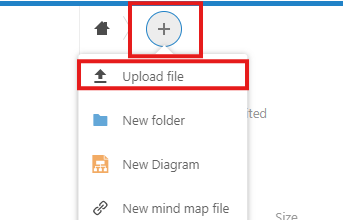
Once logged in, click the plus icon and choose what you want to upload.
3. Share File/Folder
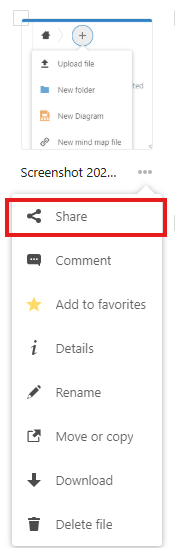
Once it uploaded, go to All files and find the file/folder you have uploaded.
Next, click the three dots underneath it and click share.
4. Copy Share Link
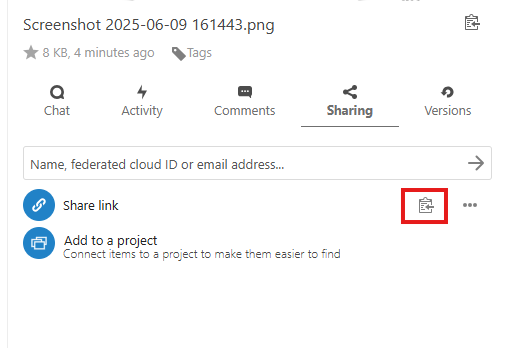
A similar menu will appear on your screen. Find Share link and click the clipboard icon to copy the link of the file.
5. Send the file link via Outlook email
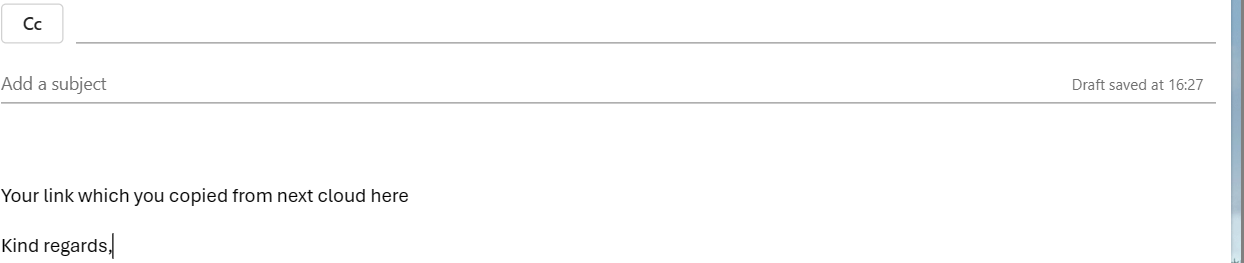
Simply paste the link into the body of your email and send the email off.
No Comments