
Windows: Time and Date Settings
Ensuring the right time and date on the systems can fix a lot of issues. If you are experiencing an issue on a specific application, this could be the potential fix. We will cover a how to set the computer to atomically configure the correct time always.
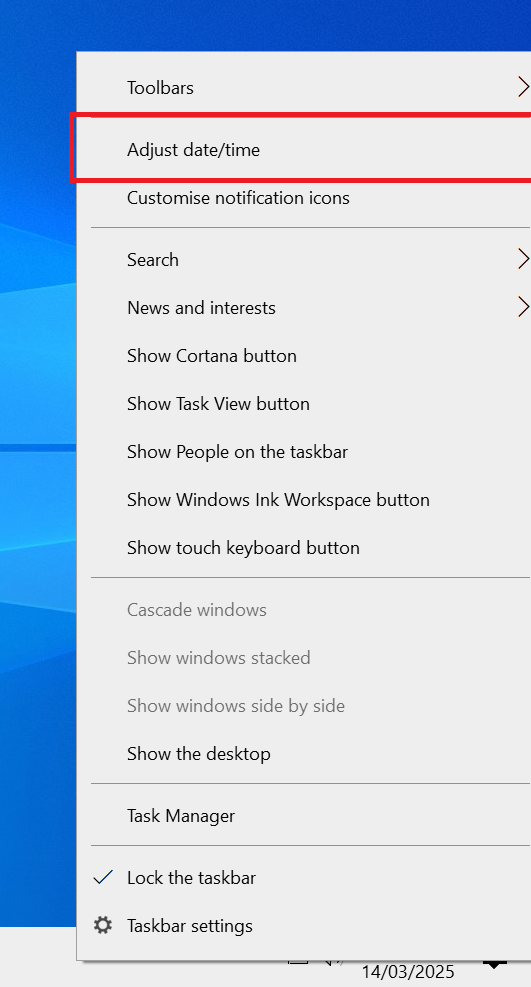
1. Adjust date/time
On the taskbar below the screen, right click the time and date. This will open a similar menu as in the image below. Click "adjust date/time".
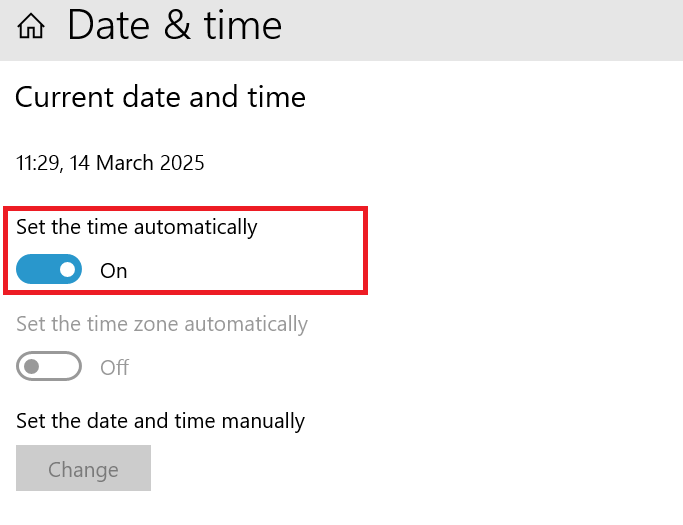
2. Set the time automatically
Simply check on the toggle for "set the time automatically". This will automatically set the right time and date every-time the computer is turned on.
No Comments