
Word: How to Password Encrypt a PDF File
You can use Microsoft Word to encrypt a PDF file. This quick guide shows you how to Password Encrypt a PDF File using Microsoft Word.
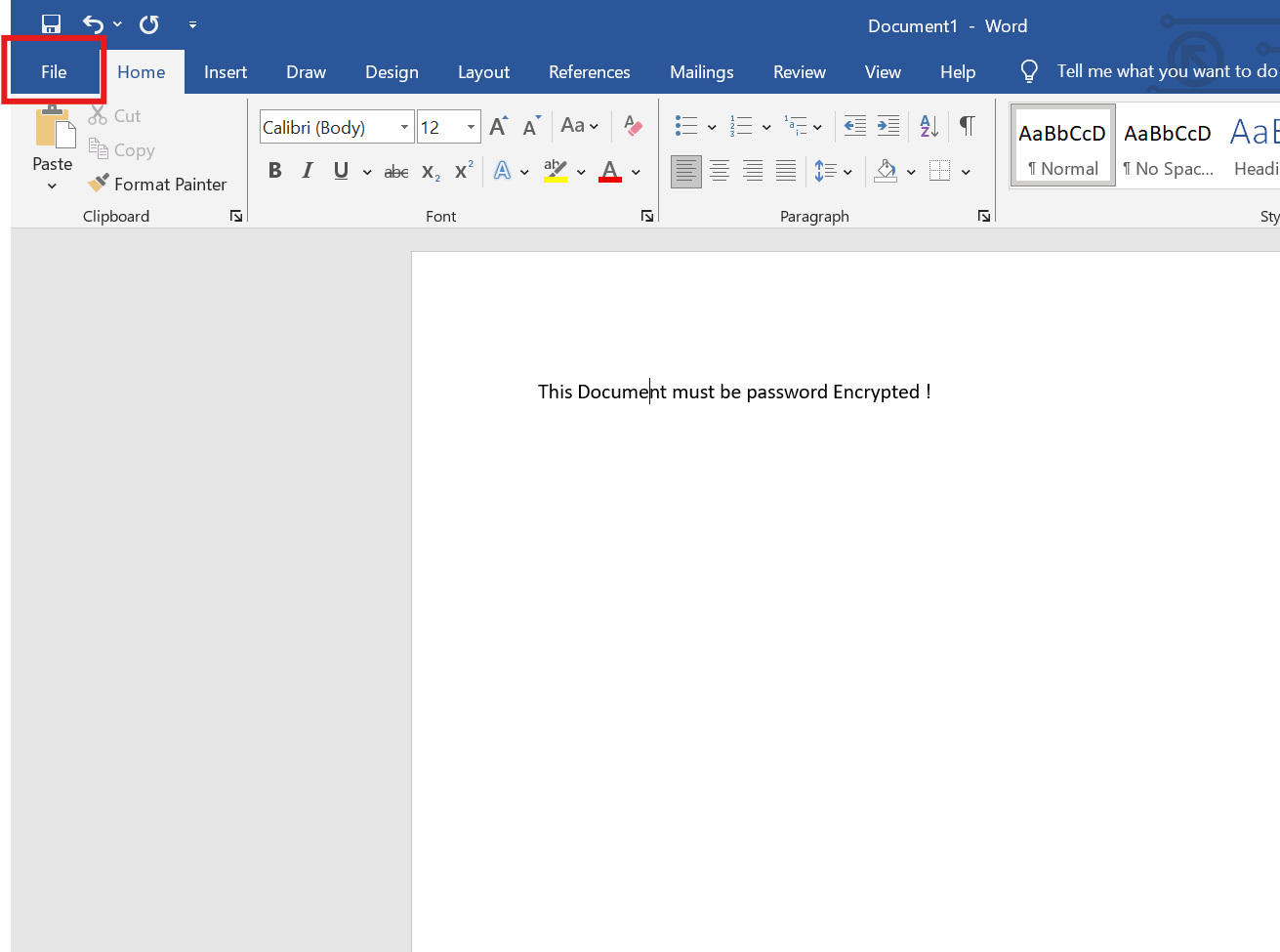
1. Open the File menu
Once you have opened the document, click the file menu at the top-left of the screen.
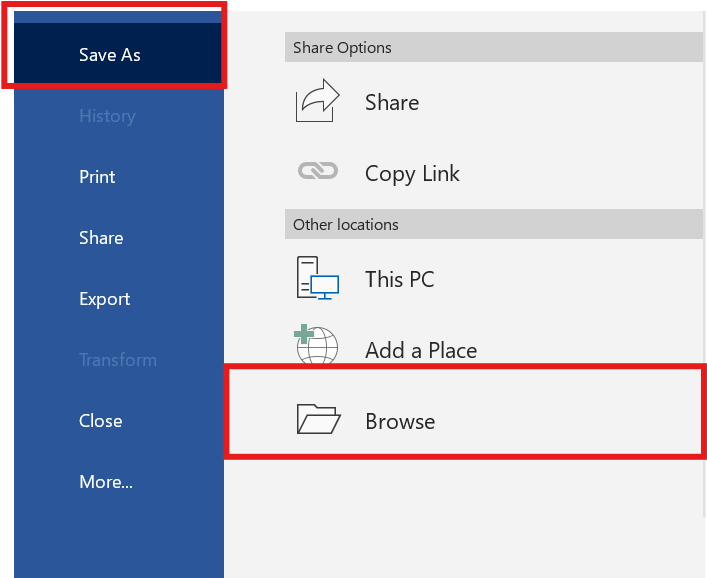
2. Save As > Browse
Click Save As > Browse
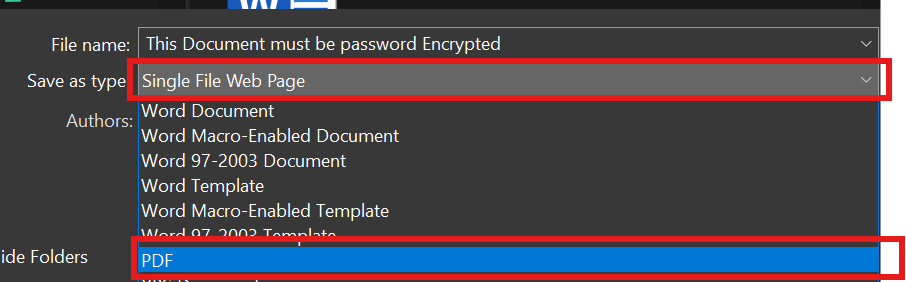
3. Save as Type as PDF
OnceClick the Quickdrop Assistdown windowmenu appears,and you’llchoose see a prompt asking for a code. Your IT support engineer will provide this code.PDF
4. Click the option button
Type in the code and click Submit to initiate the remote session.

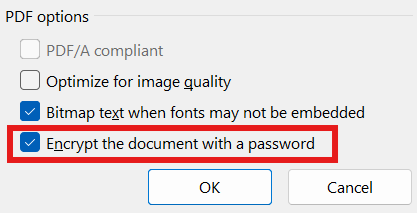
5. Enable "Encrypt the document with a password"
QuickAt Assistthe willbottom goof throughthe awindows, briefmake loadingsure screen,the followed"encrypt bythe a promptdocument with a checkbox.password" Tickis theticked. box andthen click Accept to confirm the remote session.OK.
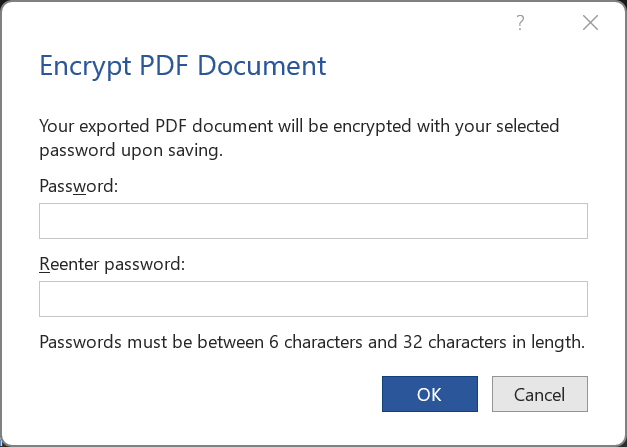
6. Enter a password
Finally,Soon yourafter supportyou engineerclick OK, you will requestbe control of your machine. A toolbar will appear at the top of your screen. Click Allowrequested to grantenter thema control.password.
7. Save the PDF
Finally,Lastly, yourchoose supporta engineerlocation willwhere requestyou controlwant ofthis yourPDF machine.+ APassword toolbar will appear at the top of your screen. Click Allowencrypted to grantbe themstored control.at.