
Windows: Configuring Power settings
QuickManaging Assist: Your Built-In Solution for Remote IT Support
Quick Assist is ayour Windows built-inpower remoteplan softwaresettings thatallows enables IT support engineersyou to quicklycontrol connect towhen your machinecomputer sleeps and resolvewhen ITthe issuesmonitor remotely.turns Settingoff. itBy upcustomizing isthese simplesettings, you can optimize power usage, improve system performance, and takesprevent justunnecessary a minute. Follow these easy steps:interruptions.
1. Open the Start Menu
Press the Windows key on your keyboard to bring up the Start Menu. Search for "Edit Power Plan"
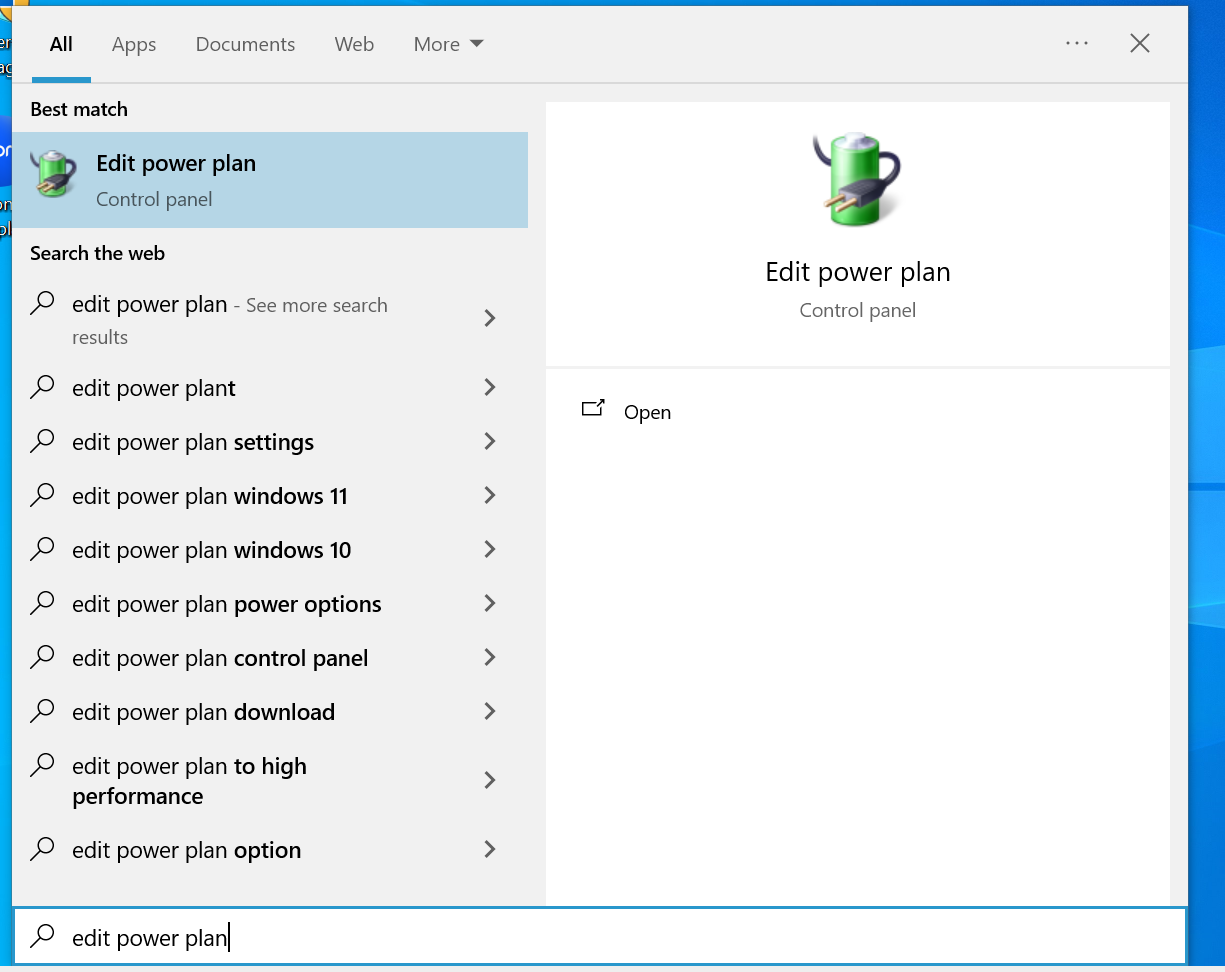
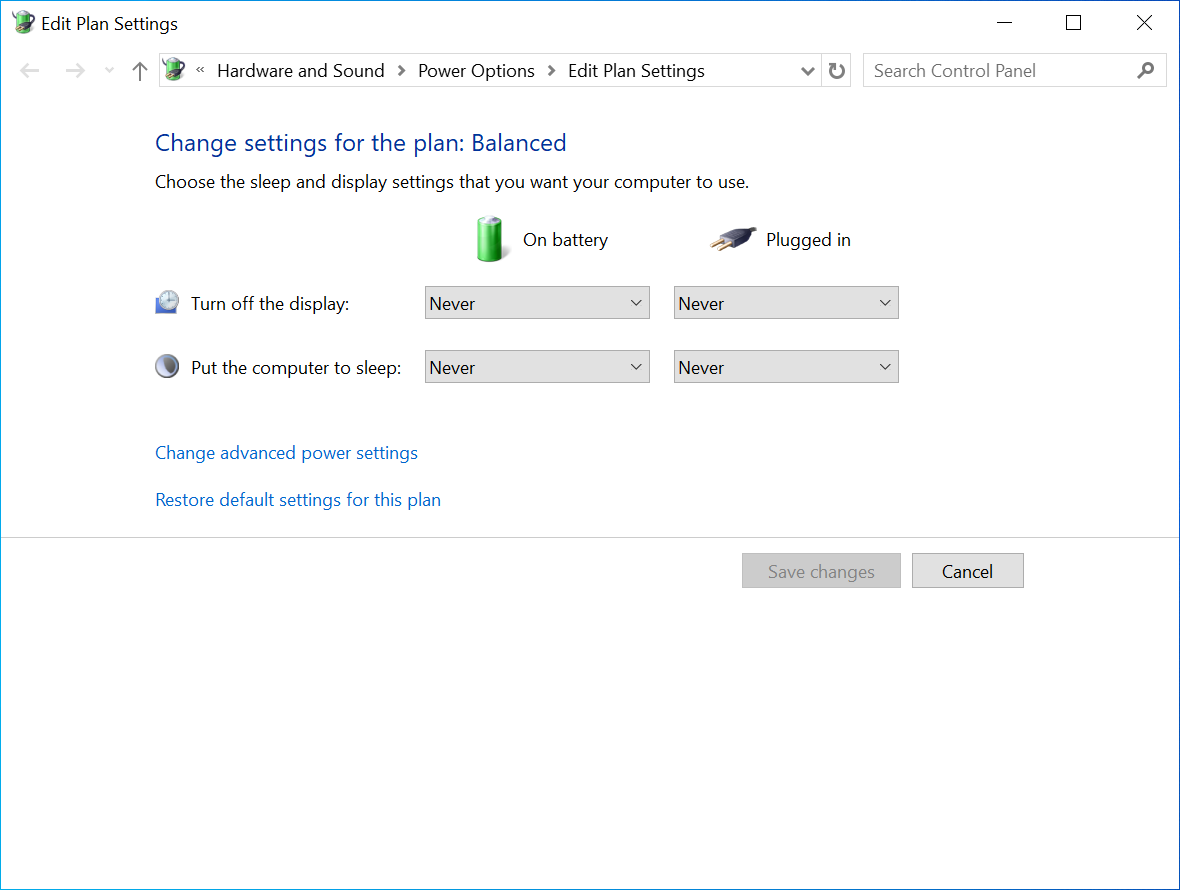
2. SearchEdit forPlan Quick AssistSettings
Type Quick Assist inUse the searchdrop bar,down then press Entermenu to openselect it.when the screen display turns off or put the computer to sleep.
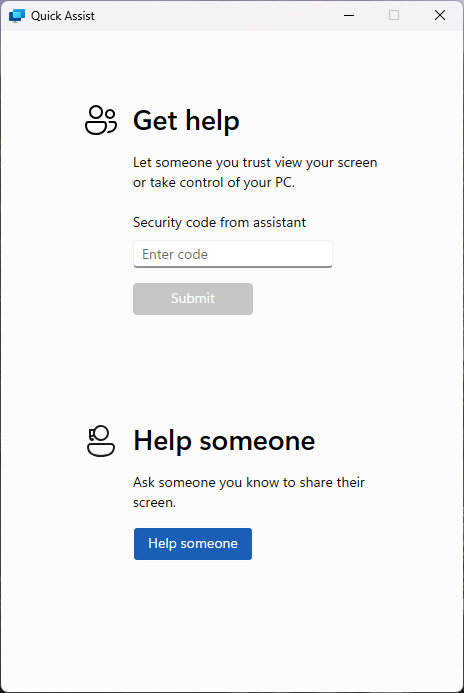
3. Enter the Support Code
Once the Quick Assist window appears, you’ll see a prompt asking for a code. Your IT support engineer will provide this code.
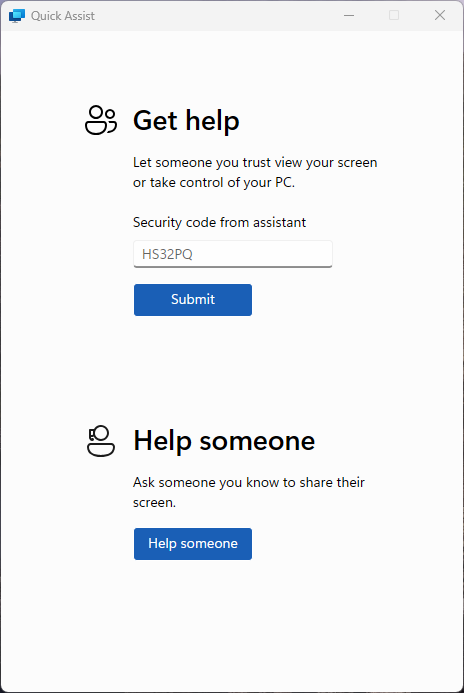
4. Submit the Code
Type in the code and click Submit to initiate the remote session.
5. Accept the Remote Session
Quick Assist will go through a brief loading screen, followed by a prompt with a checkbox. Tick the box and click Accept to confirm the remote session.
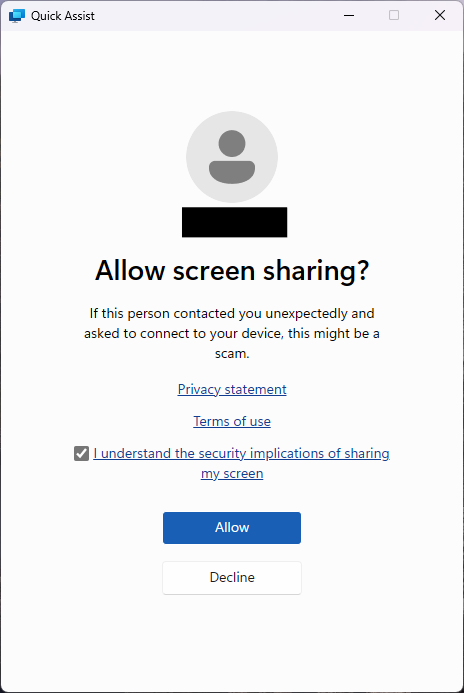
6. Grant Control to the Support Engineer
Finally, your support engineer will request control of your machine. A toolbar will appear at the top of your screen. Click Allow to grant them control.
