
Outlook: Setting up Out of Office Message (Classical Outlook)
Quick Assist:guide Yourabout Built-In Solution for Remote IT Support
Quick Assist is a Windows built-in remote software that enables IT support engineers to quickly connect to your machine and resolve IT issues remotely. Setting itsetting up isout simpleof andoffice takesreply juston aclassical minute.outlook. Follow these easy steps:
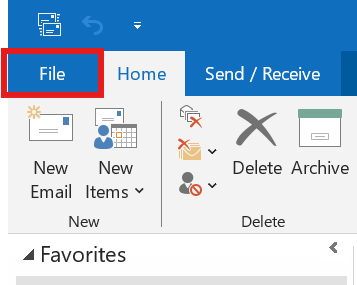
1. Open theFile's Start MenuTab
PressClick the Windowsfile key on your keyboard to bring up the Start Menu.tab.
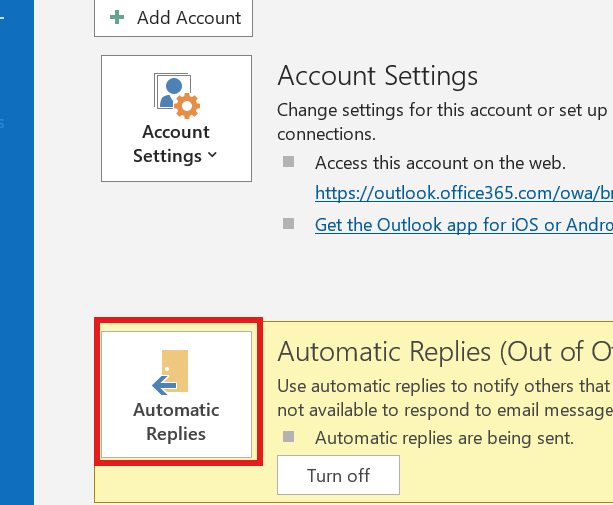
2. SearchSelect forAutomatic Quick Assistreplies
Type Quick Assist inIn the searchInfo bar,Section, thenfind pressthe Enterautomatic toreplies and open it.
3. EnterConfigure your reply
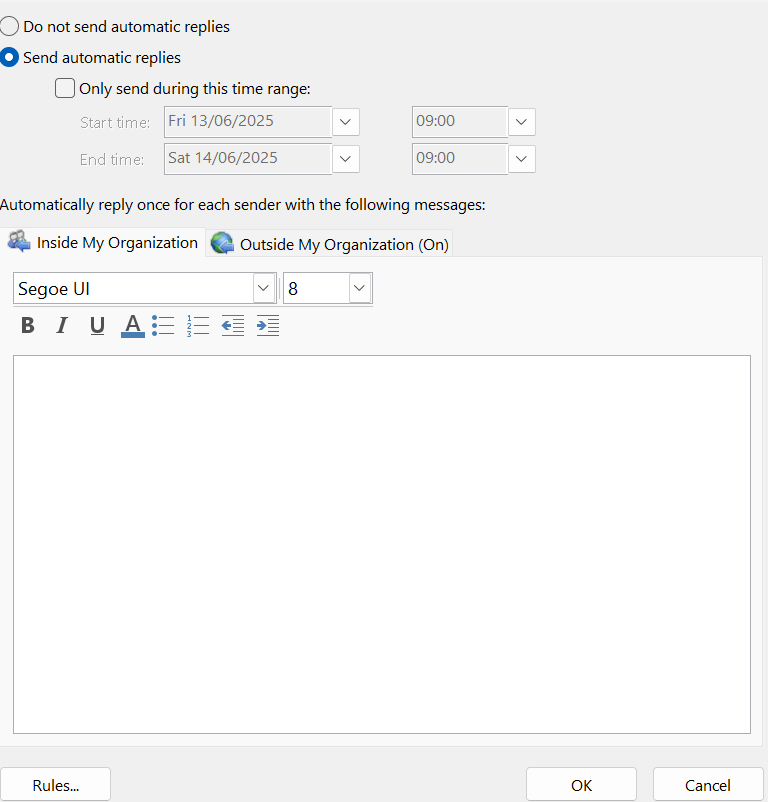
In here you can configure the Supportautomatic Codereply
Onceyou thewant Quickto Assistbe windowsent appears,to you’llinsiders seeand a prompt asking for a code. Your IT support engineer will provide this code.outsiders.
4. SubmitThings you might consider
You might want to consider the Codefollowing
Typewhen inconfiguring:
- Adding your signature at the
codebottom on the reply. ( Simply copy andclickpasteSubmityour current signature) - Setting an Outside my Organization reply
- Sending a message between a particular time period. (check the 'only send during this time range' box)#
- Adding rules if you want the reply to
initiatebethemoreremotetargeted.
5. Accept the Remote Session
Quick Assist will go through a brief loading screen, followed by a prompt with a checkbox. Tick the box and click Accept to confirm the remote session.
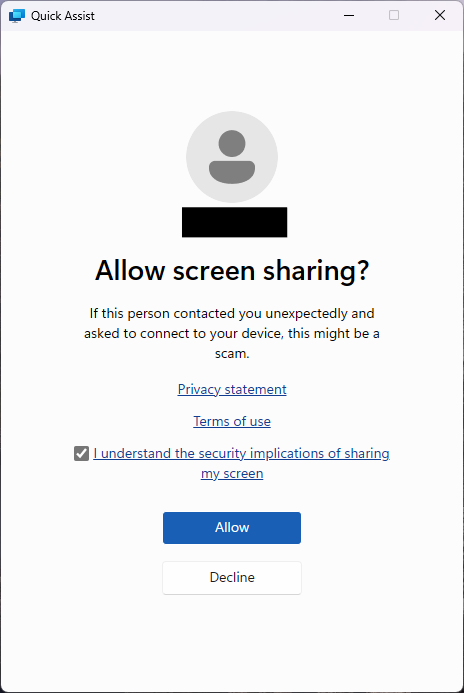
6. Grant Control to the Support Engineer
Finally, your support engineer will request control of your machine. A toolbar will appear at the top of your screen. Click Allow to grant them control.
