
Bookmarking Sites - Chrome
Ever wish you could keep your most-used websites easily accessible at the top of your screen? In this guide, we'll show you exactly how to do that using the Chrome browser. Please note, the steps for Microsoft Edge differ slightly.
1) Open Chrome and navigate to the website you use regularly.

2) In the top-right corner, click the Star icon to bookmark the site.

3) Press CTRL + SHIFT + B to display the bookmarks bar if it isn’t visible.

4) At the top of the screen, open the "All Bookmarks" menu.

5) Drag the newly bookmarked site from the list onto the bookmarks bar for easy access.

1. Open the Chrome
Open Chrome and navigate to the website you wish to bookmark.
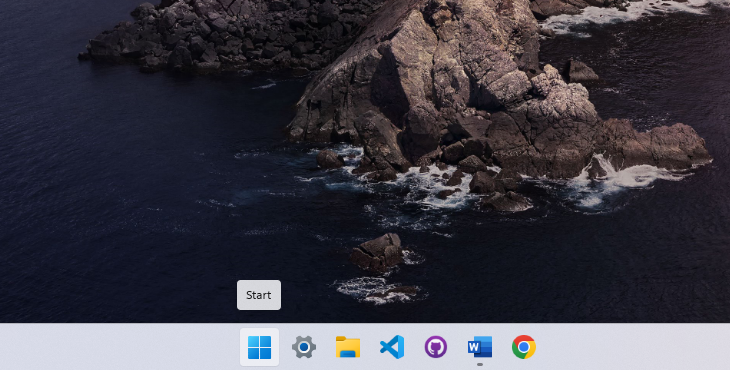
2. Search for Quick Assist
Type Quick Assist in the search bar, then press Enter to open it.
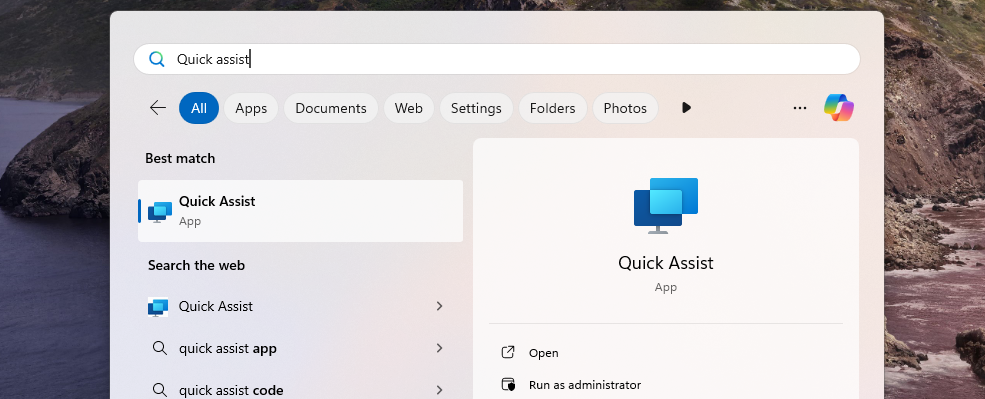
3. Enter the Support Code
Once the Quick Assist window appears, you’ll see a prompt asking for a code. Your IT support engineer will provide this code.
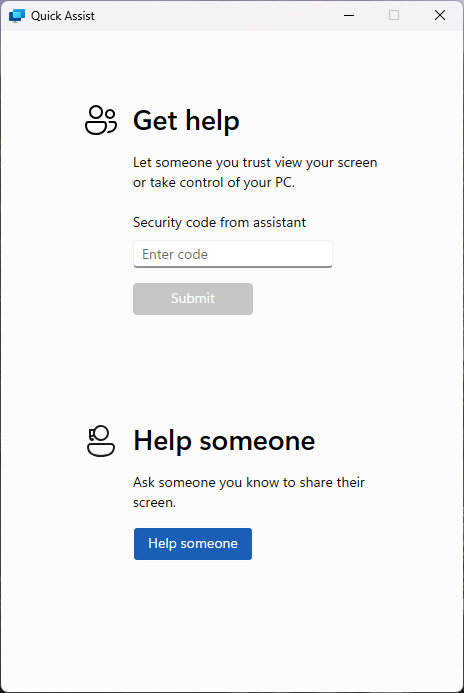
4. Submit the Code
Type in the code and click Submit to initiate the remote session.
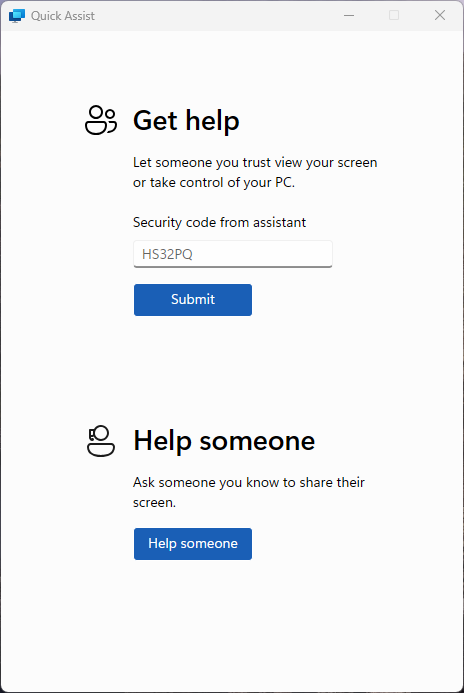
5. Accept the Remote Session
Quick Assist will go through a brief loading screen, followed by a prompt with a checkbox. Tick the box and click Accept to confirm the remote session.
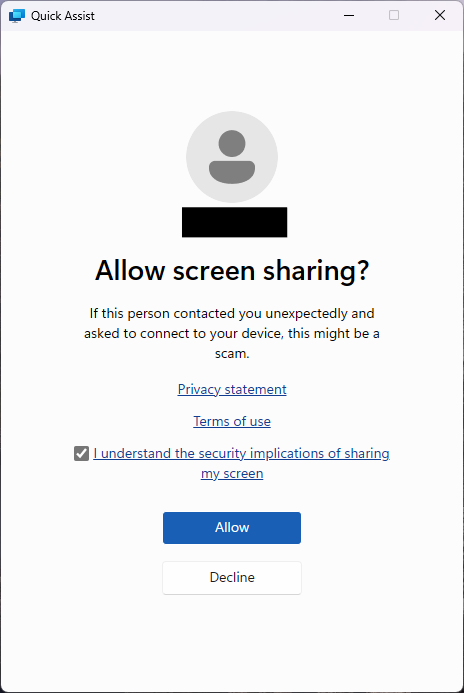
6. Grant Control to the Support Engineer
Finally, your support engineer will request control of your machine. A toolbar will appear at the top of your screen. Click Allow to grant them control.
