Windows: Tools for Productivity
QuickThis Assist:article Yourcovers Built-Indifferent Solutionapplication forwhich Remoteare ITpre-built Support
Windows to help you to be extra productive when you are working.
1. Snipping Tool
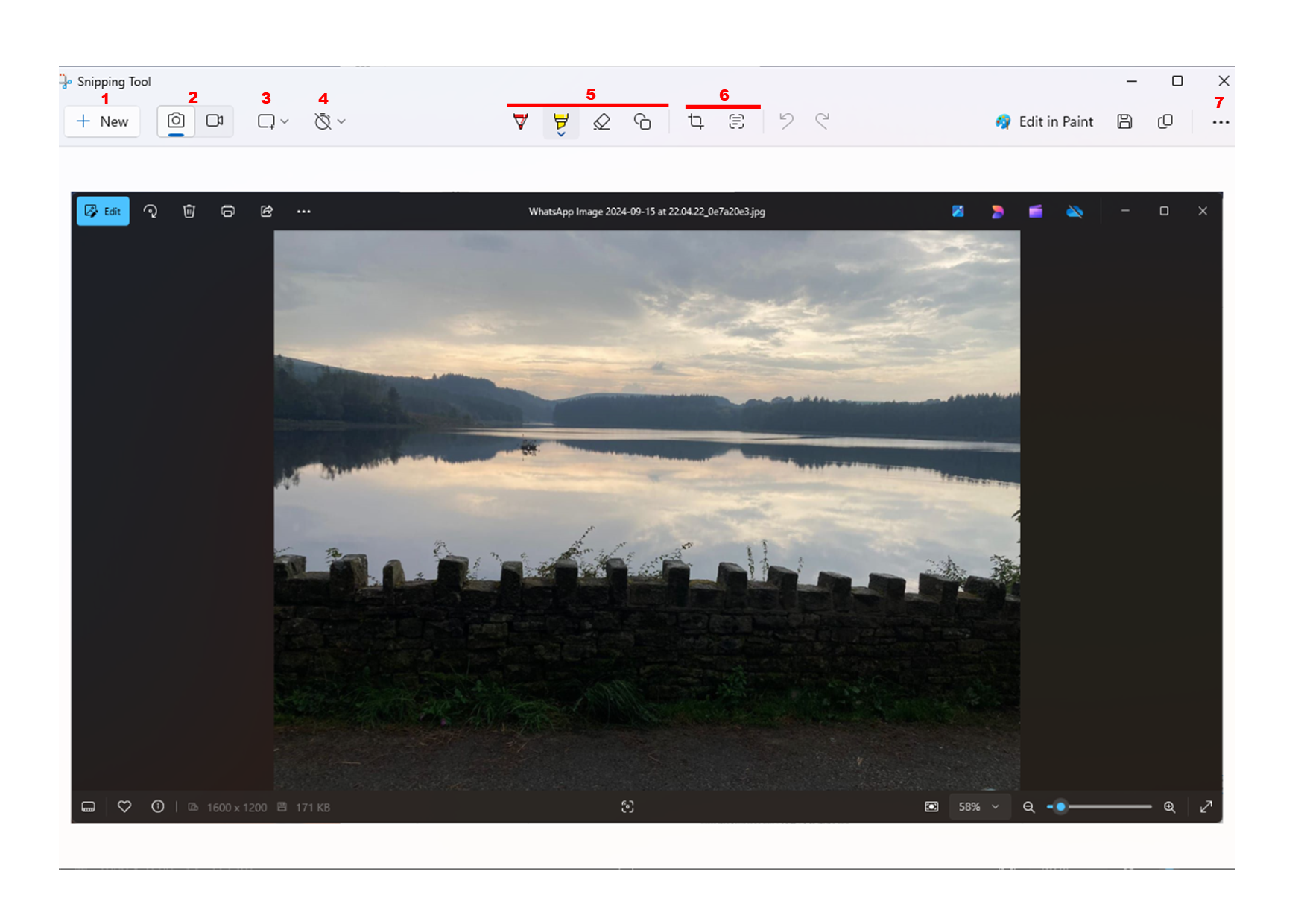
Snipping tool is helpful in allowing you to take snippets of your screen. In Windows 11 it also provides a recording feature. After a snippet has been taken you will automatically have it saved on your clipboard. This allows you to quickly paste the snippet anywhere you'd like. You can use the Windows key + Shift + S to quickly open the snippet tool.
Where to find:
- Windows key + S to open the windows search box
- Type Snipping Tool.
How to use:
- Begin a new snippet.
- Toggle between Screenshot or Recording ( Windows 10 only always for screenshot).
- Toggle between how you would like to take a snippet. e.g Cutting with window toggled, will give you a screenshot of whatever window you selected.
- Add Delay to give you enough time to take a screenshot.
- Quickly Modify the screenshot.
- Crop or Convert whatever text is seen in the screenshot into copiable text.
- Other features
2. Sticky Notes
Sticky notes is a valuable tool which allows you to take notes on the fly. Notes are automatically saved and you can keep creating sticky notes as much as you want.
Where to find:
- Windows key + S to open the windows search box
- Type Sticky Note.
- You might need to sign into a Microsoft account (in that case you can use your outlook email address).

How to use:
- Add another sticky Note
- Settings - Includes customizing background colour.
- Tool bar - including adding an image and text customization.
3. Paint
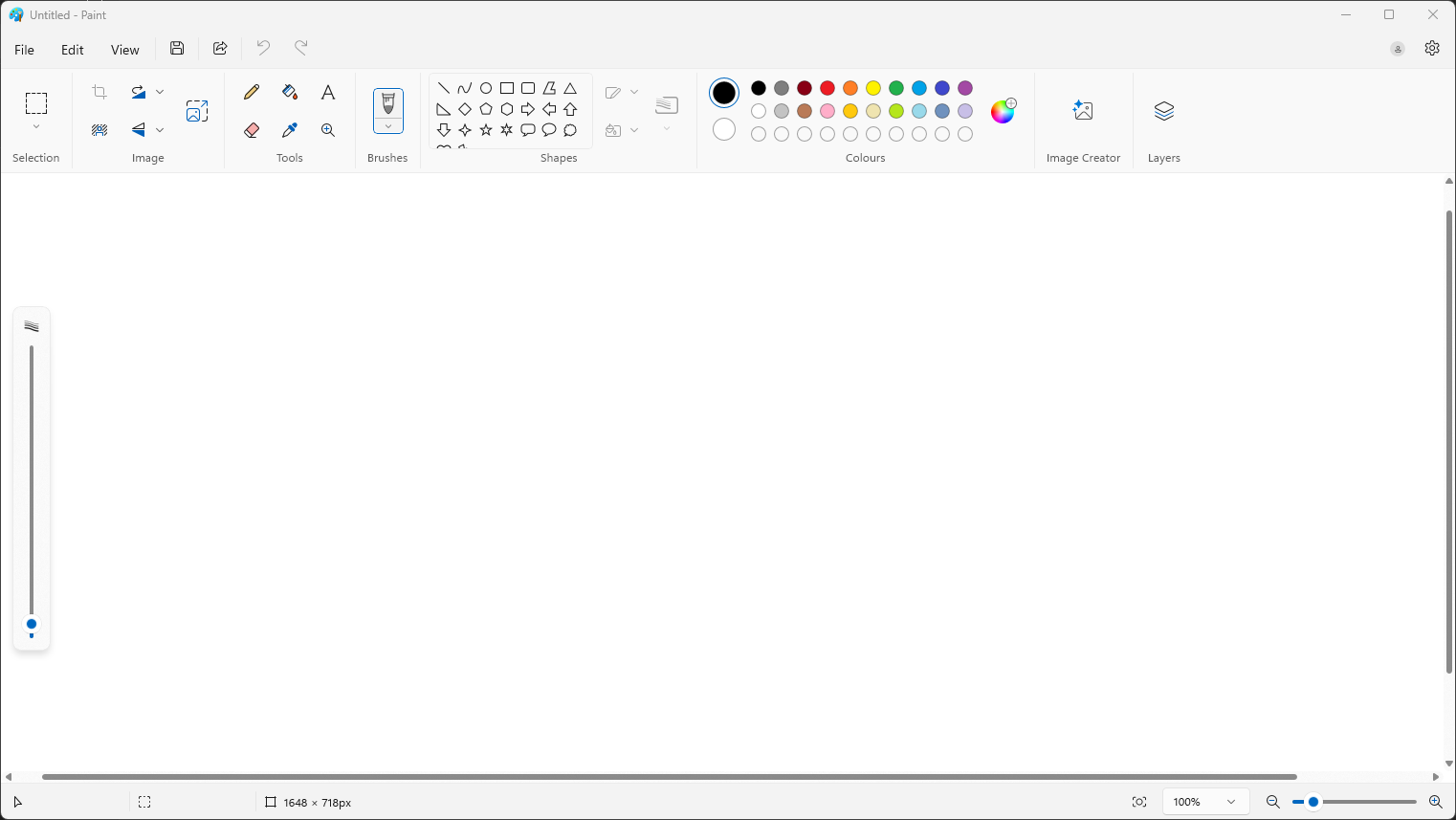
Paint is a handy tool to quickly editing images. copy and paste images in the canvas and start using the tools at the top to edit the image.
Where to find:
- Windows key + S to open the windows search box
- Type Paint.
4. Photos
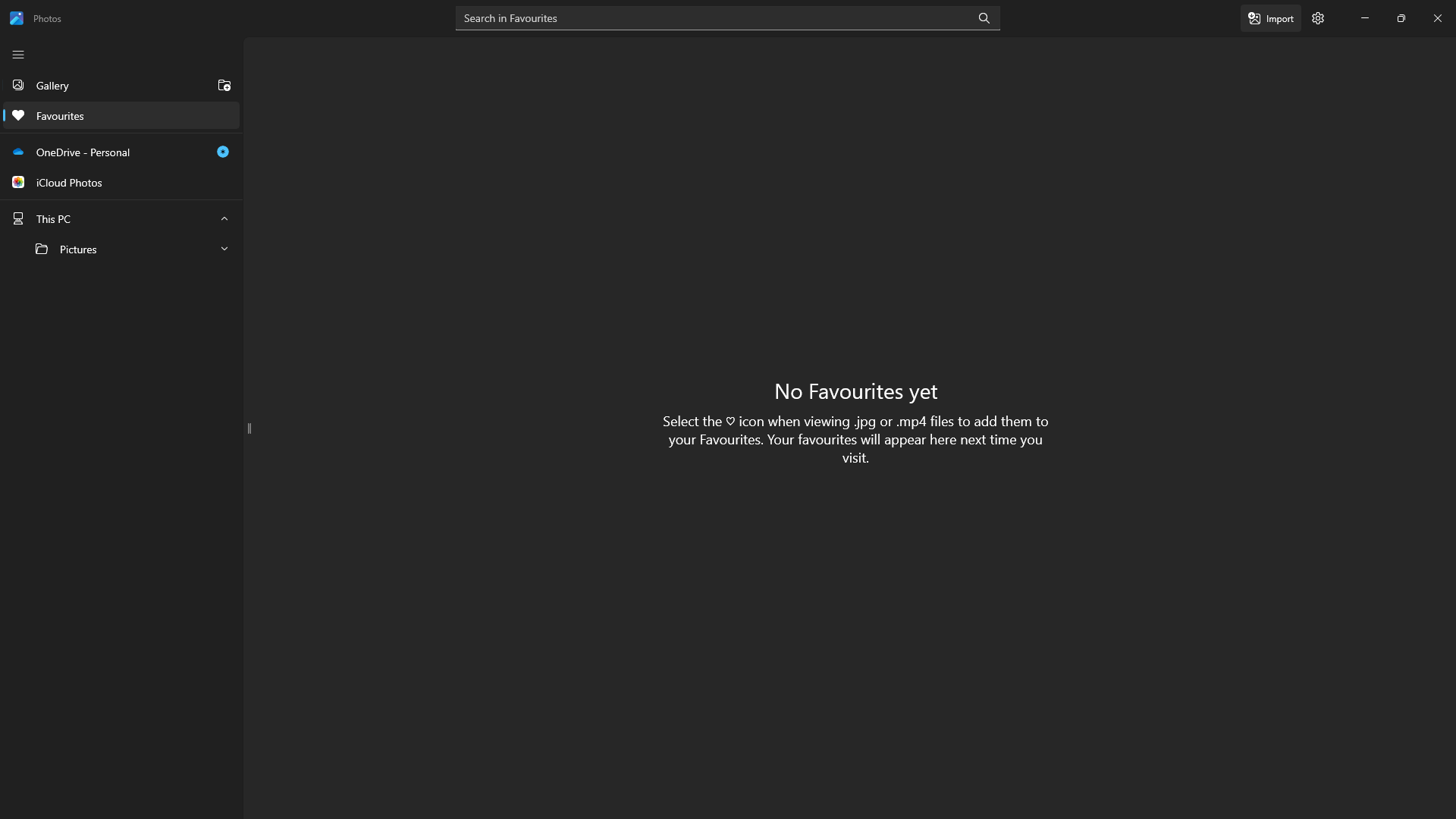
An alternative way to browser your pictures saved on your machine. Photos also allows you to connect to OneDrive or iCloud photos.
Where to find:
- Windows key + S to open the windows search box
- Type Photos.
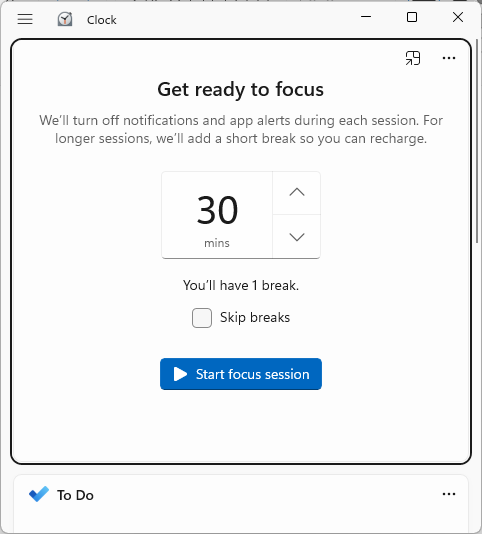
5. Clock
The clock application is great tool to keep focus. You can set a timer and a break time to ensure you are focused when you are using your machine.
Where to find:
- Windows key + S to open the windows search box
- Type Clock.
6. Microsoft Store
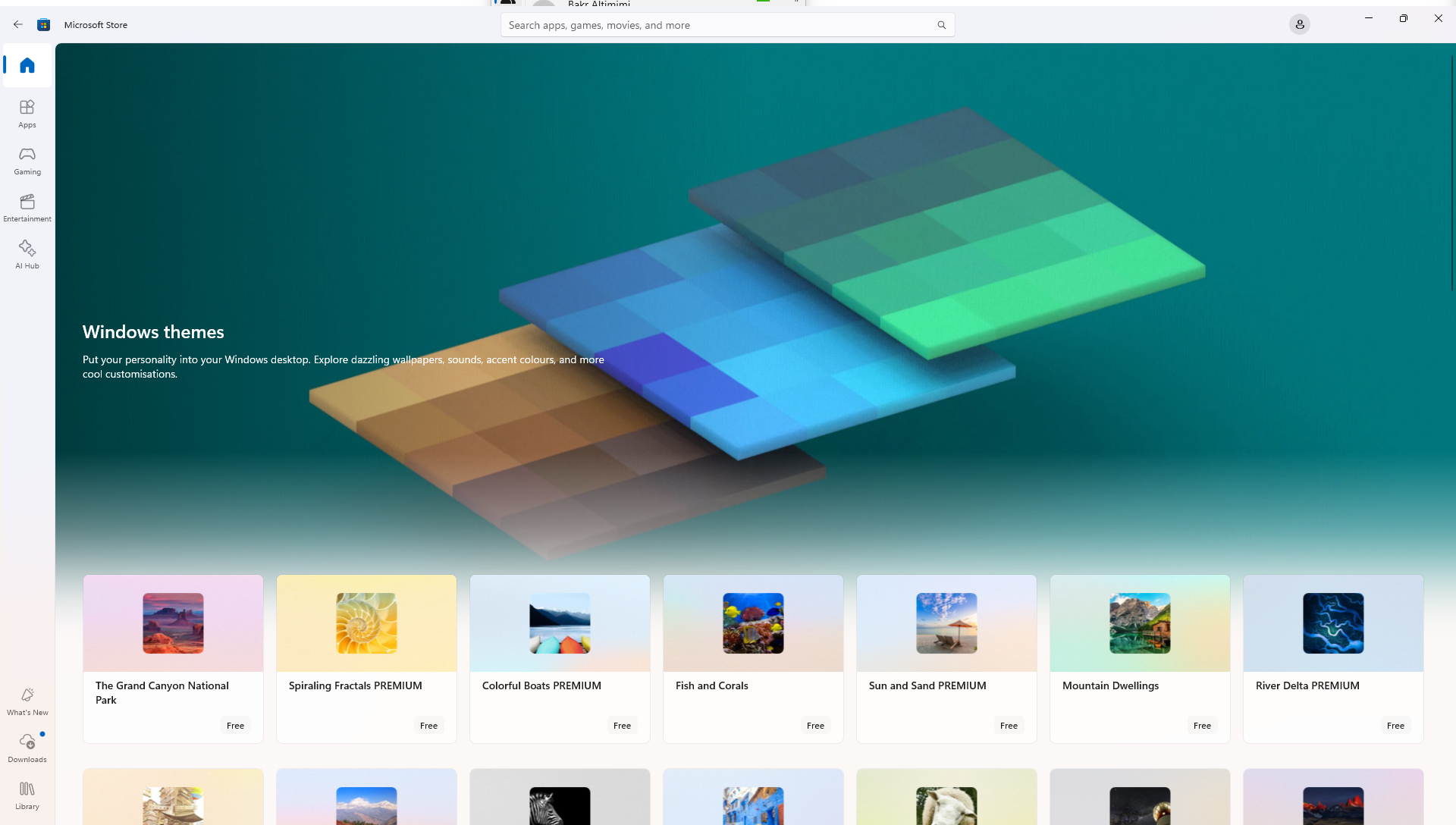
Similar to the app store or apple store, Microsoft store is a safe way to install applications. You can install applications like Whatsapp, Facebook...etc.
Where to find:
- Windows key + S to open the windows search box
- Type Microsoft Store.