Windows: Tools for Productivity
Quick Assist: Your Built-In Solution for Remote IT Support
1. Snipping Tool
Snipping tool is helpful in allowing you to take snippets of your screen. In Windows 11 it also provides a recording feature. After a snippet has been taken you will automatically have it saved on your clipboard. This allows you to quickly paste the snippet anywhere you'd like. You can use the Windows key + Shift + S to quickly open the snippet tool.
Where to find:
- Windows key + S to open the windows search box
- Type Snipping Tool.
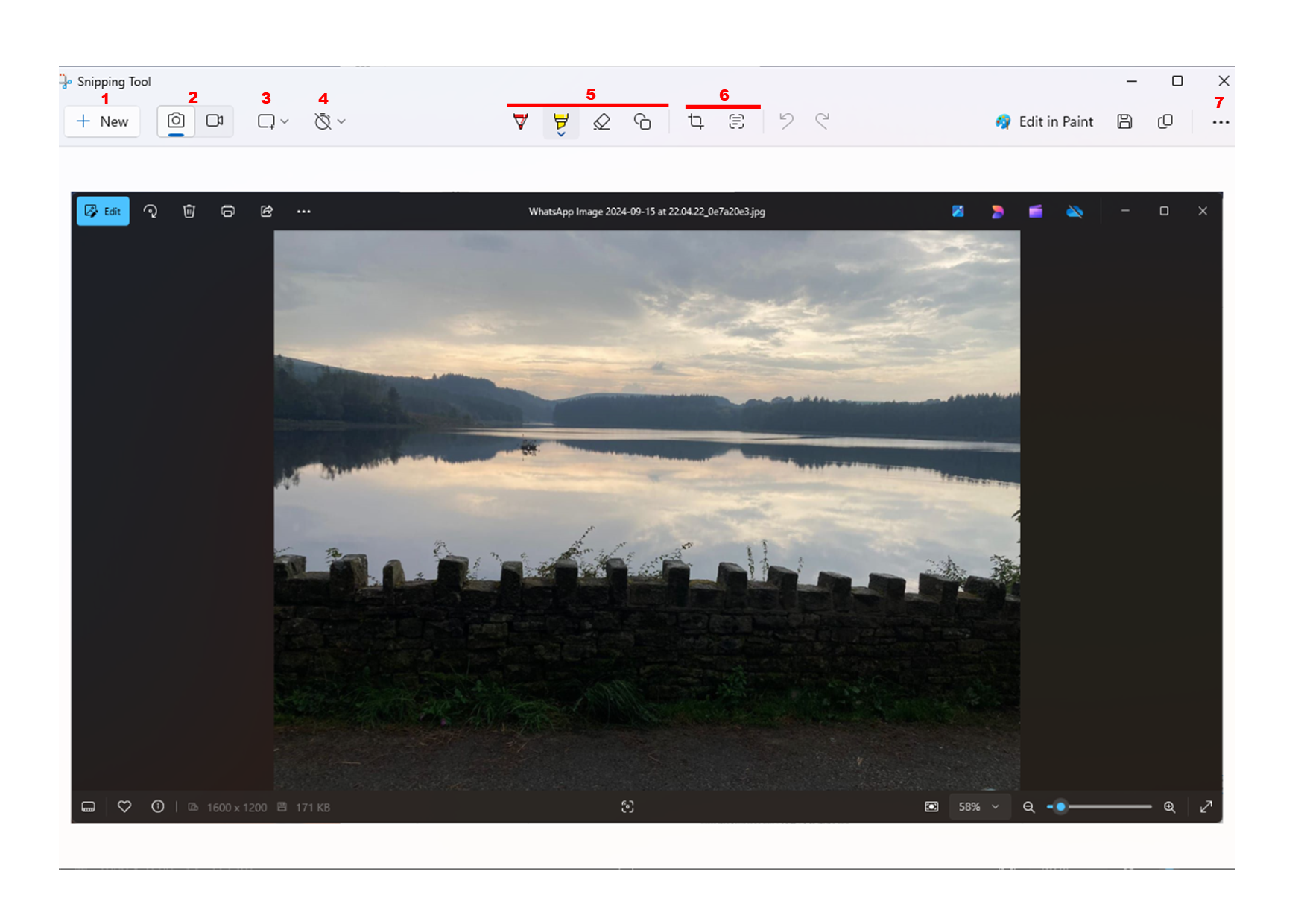
How to use:
- Begin a new snippet.
- Toggle between Screenshot or Recording ( Windows 10 only always for screenshot).
- Toggle between how you would like to take a snippet. e.g Cutting with window toggled, will give you a screenshot of whatever window you selected.
- Add Delay to give you enough time to take a screenshot.
- Quickly Modify the screenshot.
- Crop or Convert whatever text is seen in the screenshot into copiable text.
- Other features
2. Sticky Notes
Sticky notes is a valuable tool which allows you to take notes on the fly. Notes are automatically saved and you can keep creating sticky notes saved.as much as you want.
Where to find:
- Windows key + S to open the windows search box
- Type Sticky Note.
- You might need to sign into a Microsoft account (in that case you can use your outlook email address).
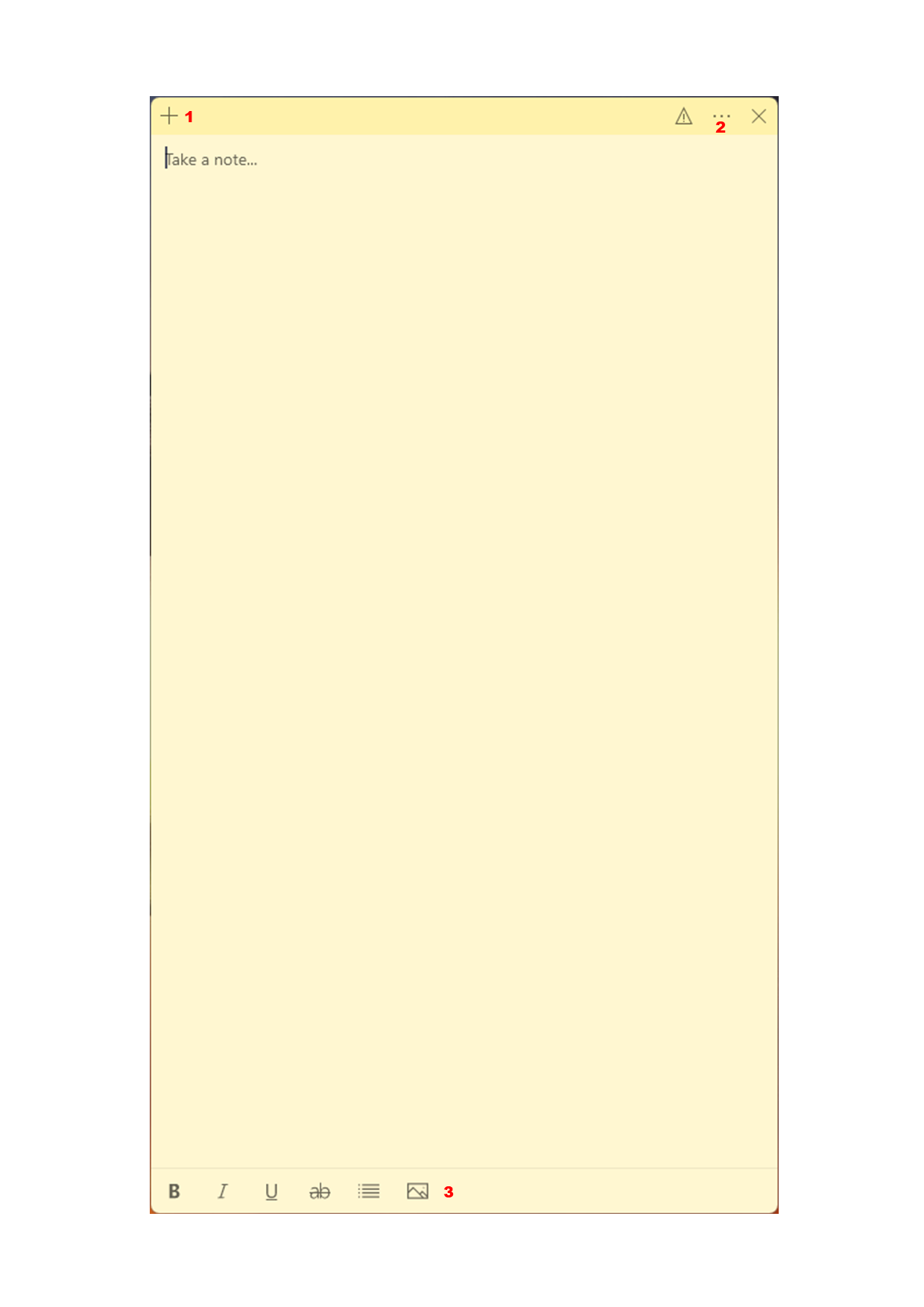
How to use:
- Add another sticky Note
- Settings - Includes customizing background colour.
- Tool bar - including adding an image and text customization.
3. Paint
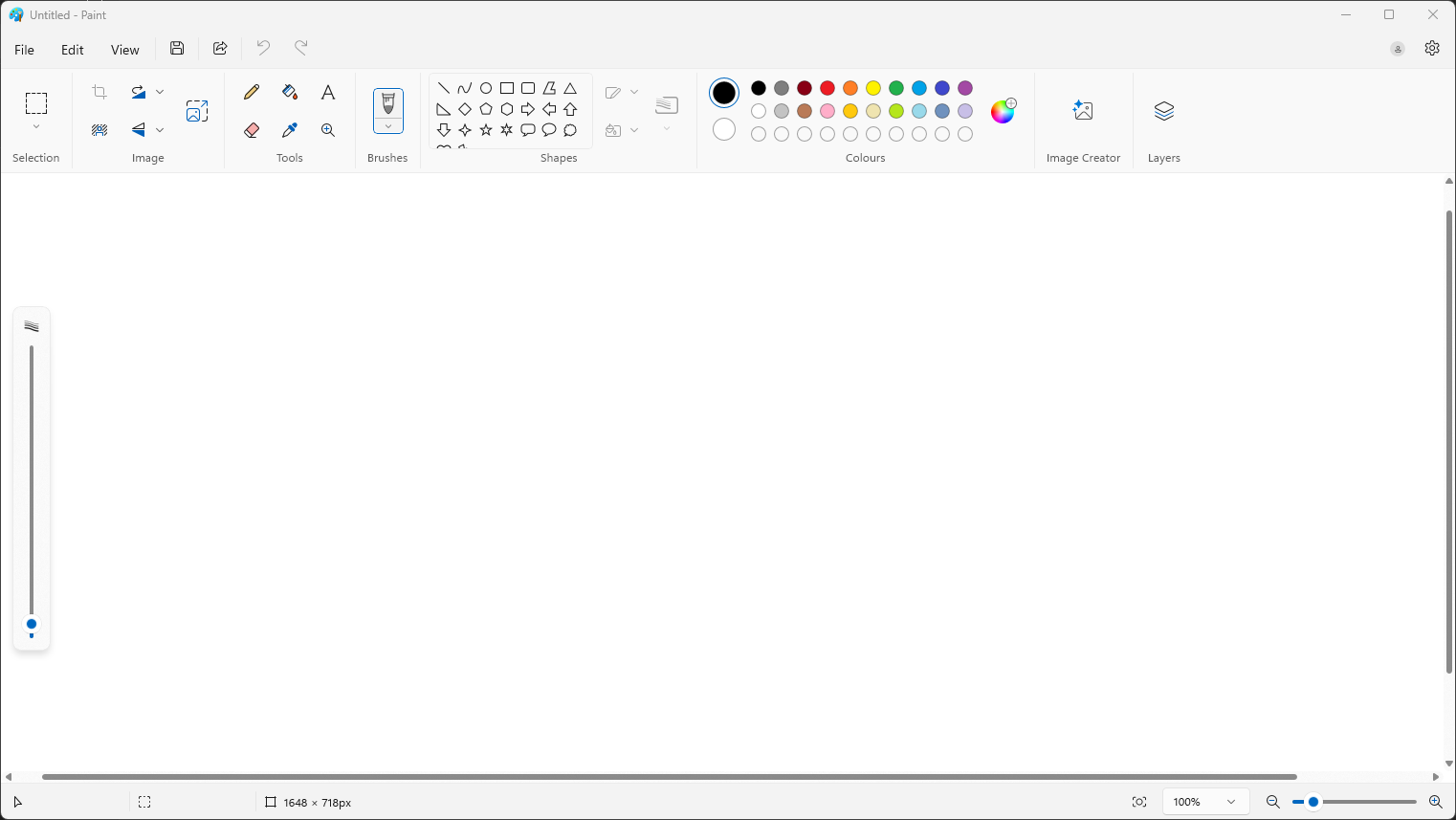
OncePaint is a handy tool to quickly editing images. copy and paste images in the Quickcanvas Assistand windowstart appears,using you’llthe seetools aat promptthe askingtop forto aedit code.the Yourimage.
Where supportto engineerfind:
- Windows
thiskeycode.+ S to open the windows search box - Type Paint.
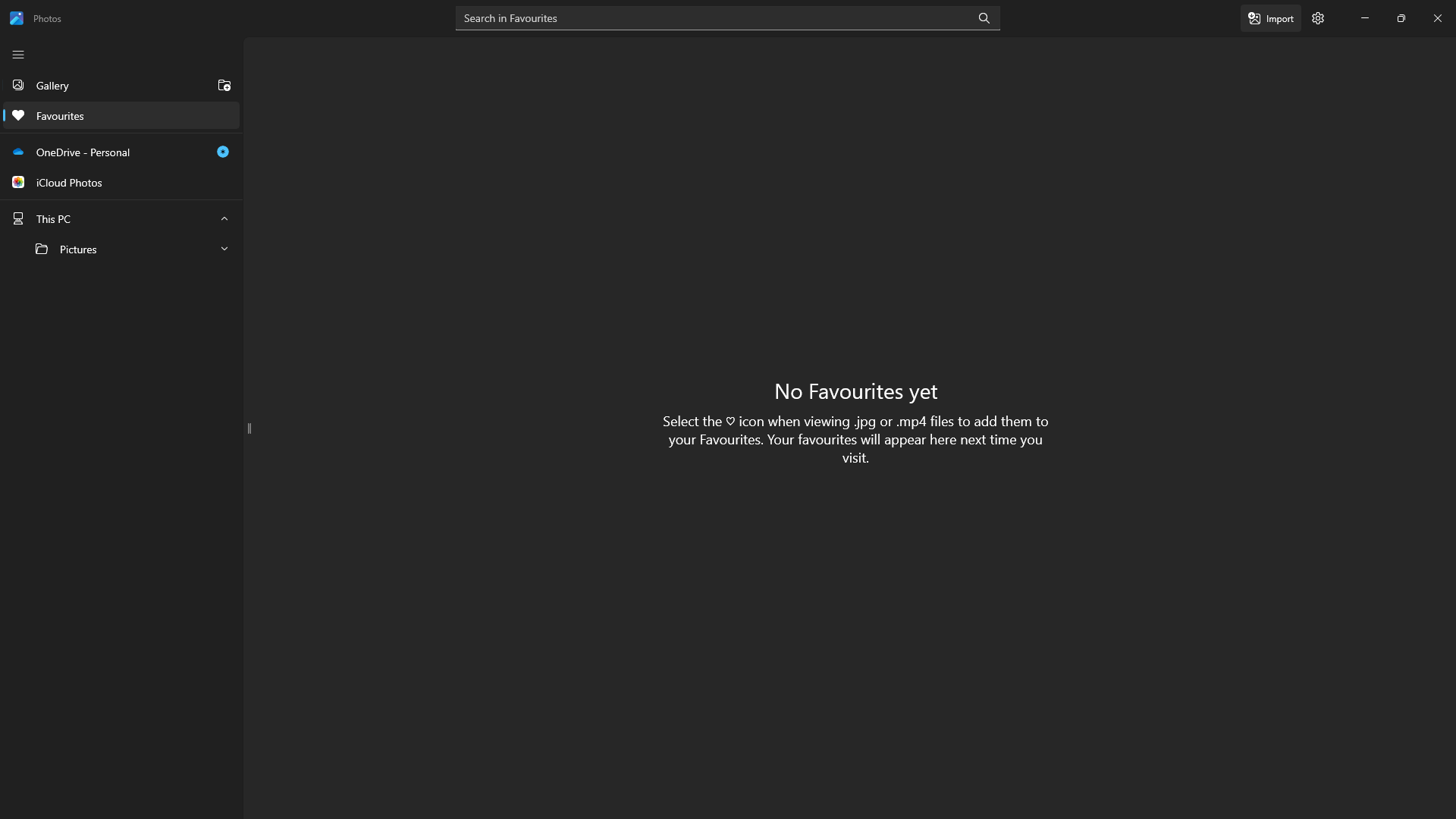
4. Photos
Type in the code and click Submit to initiate the remote session.
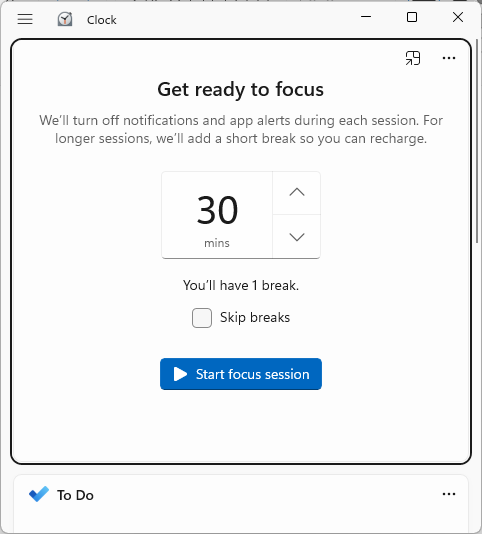
5. Clock
Quick Assist will go through a brief loading screen, followed by a prompt with a checkbox. Tick the box and click Accept to confirm the remote session.
6. Microsoft Store
Finally, your support engineer will request control of your machine. A toolbar will appear at the top of your screen. Click Allow to grant them control.