
Windows: Restarting your machine
Here’s how to reboot your Windows machine in a few simple steps. Windows 11 and 10 and generally the same.
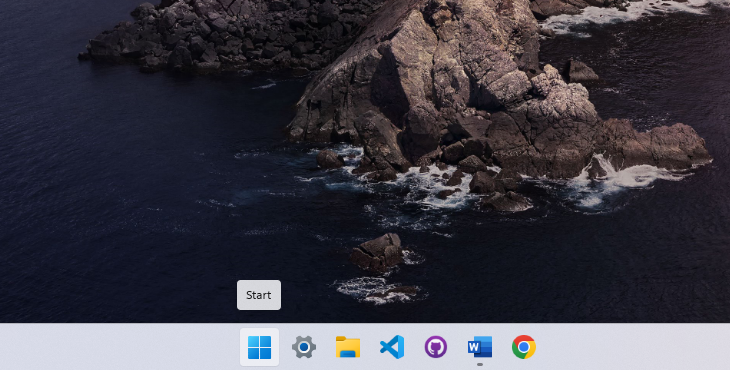
1. Open the Start Menu
Press the Windows key on your keyboard to bring up the Start Menu.
2. Select Power Options
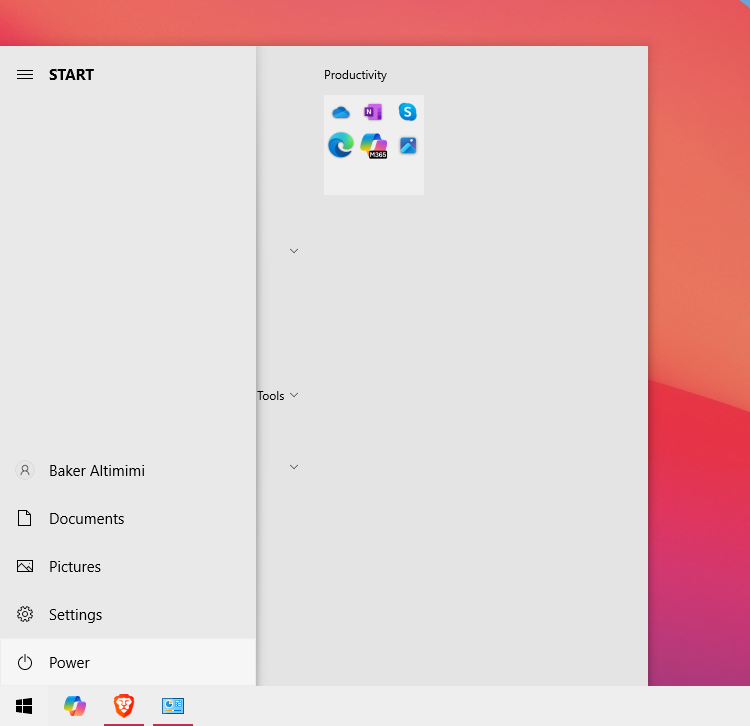
3. Choose Restart
Click on Restart. Your computer will close all programs, log off, and reboot automatically.
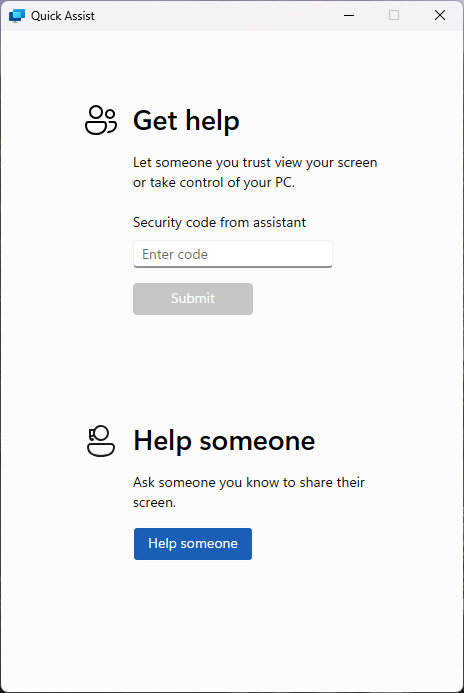
4. Confirm and Save Work
If prompted, make sure to save any unsaved work before proceeding, as restarting will close open applications.
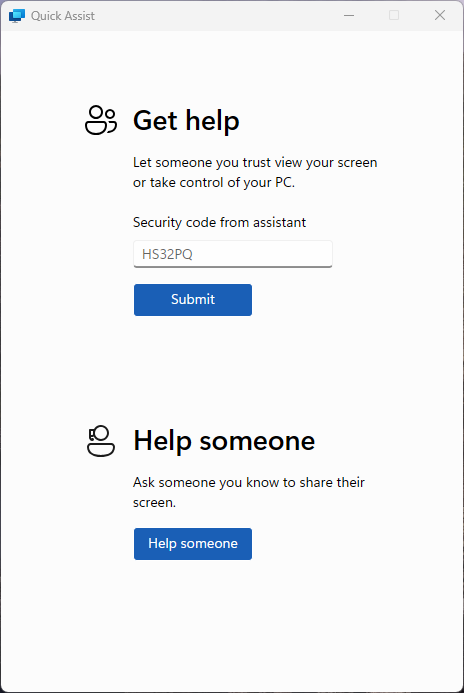
Benefits of Rebooting Over Shutting Down
Restarting a computer offers some unique advantages over shutting down. When you restart, the system clears temporary files and cache, freeing up system memory. This often resolves minor glitches, refreshes processes, and optimizes performance. Importantly, rebooting also completes pending updates. Updates often require a reboot to fully install changes, improving system security and stability. Unlike a complete shutdown, which does not necessarily initiate updates, restarting ensures that patches, driver updates, and other system improvements are applied.
Thanks for reading this Article, if you are still experiencing issues and nothing has been resolved then please contact the support team.