
Quick Assist: Remote Access
Quick Assist: Your Built-In Solution for Remote IT Support
Quick Assist is a Windows built-in remote software that enables IT support engineers to quickly connect to your machine and resolve IT issues remotely. Setting it up is simple and takes just a minute. Follow these easy steps:
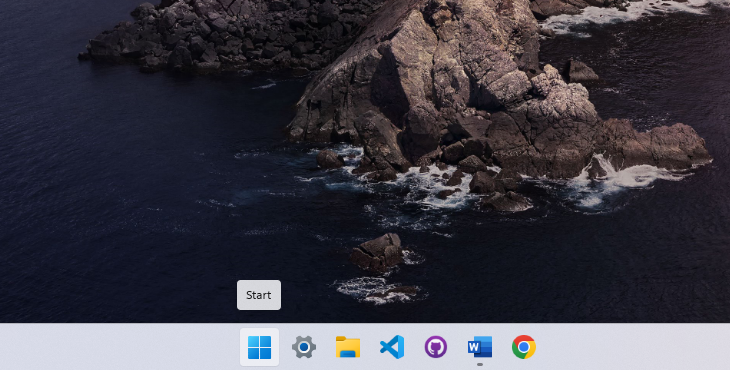
1. Open the Start Menu
Press the Windows key on your keyboard to bring up the Start Menu.
(Insert image
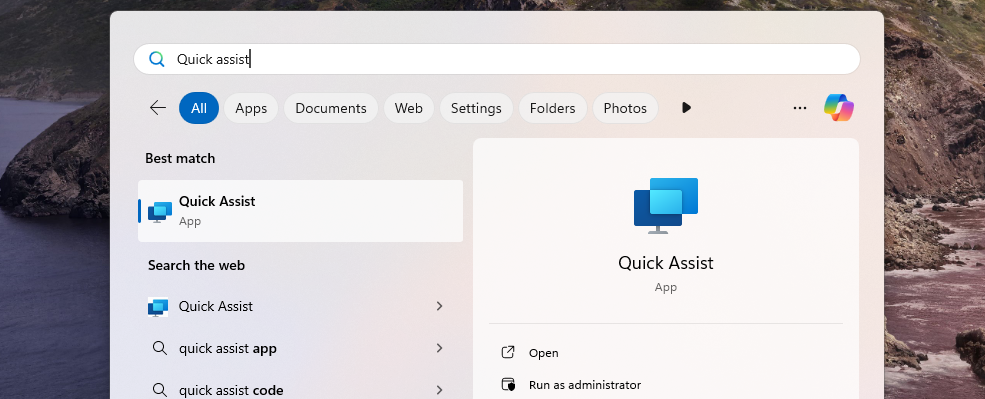
2. Search for Quick Assist
Type Quick Assist in the search bar, then press Enter to open it.
(Insert image
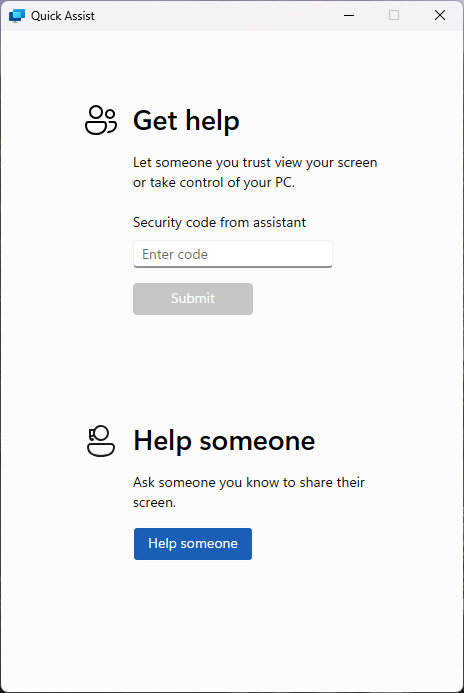
3. Enter the Support Code
Once the Quick Assist window appears, you’ll see a prompt asking for a code. Your IT support engineer will provide this code.
(Insert image
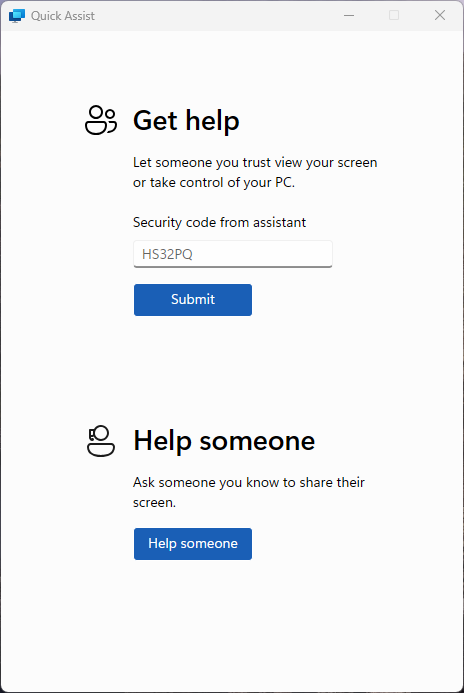
4. Submit the Code
Type in the code and click Submit to initiate the remote session.
(Insert image
5. Accept the Remote Session
Quick Assist will go through a brief loading screen, followed by a prompt with a checkbox. Tick the box and click Accept to confirm the remote session.
(Insert image
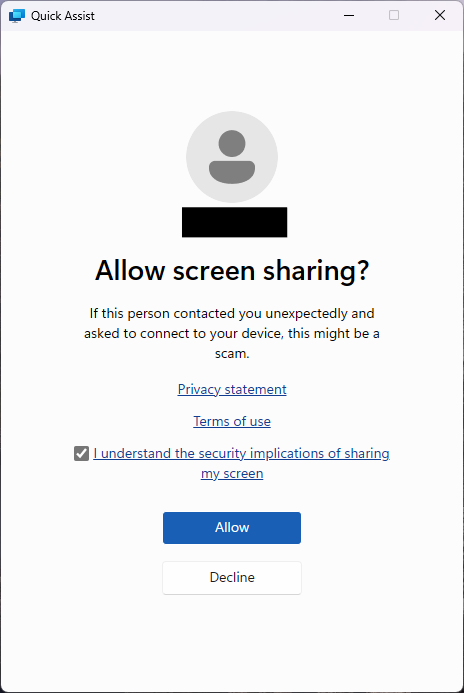
6. Grant Control to the Support Engineer
Finally, your support engineer will request control of your machine. A toolbar will appear at the top of your screen. Click Allow to grant them control.
(Insert image

And that’s it! Your support engineer will now be able to assist you with resolving your IT issues remotely. If you have any further questions, don’t hesitate to ask!