
Outlook: How to encrypt Email Attachments using 7-ZIP
Quick Assist: Your Built-In Solution for Remote IT Support
Quick Assist is a Windows built-in remote software that enables IT support engineers to quickly connect to your machine and resolve IT issues remotely. Setting it up is simple and takes just a minute. Follow these easy steps:
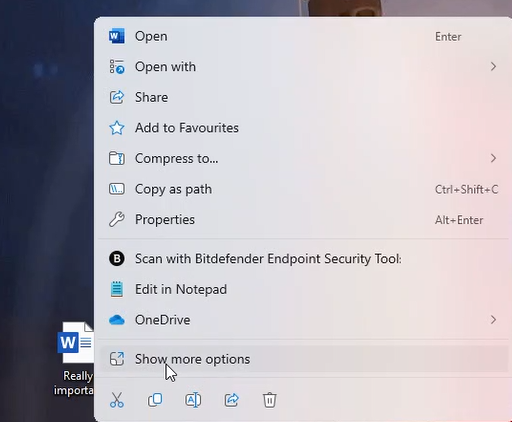
1. OpenRight Click document
Find and right click the Startfile Menuyou
Presswould like to encrypt. After right click find the "Windowsshow more options" keybutton onand yourclick keyboard to bring up the Start Menu.it.
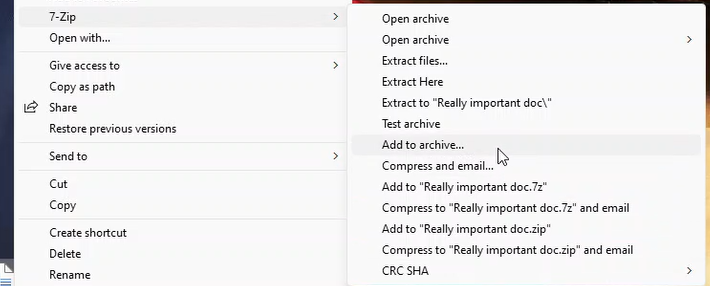
2. SearchAdd forto Quick Assistarchive
TypeMore Quickoptions Assistshould inappear, find the search7-zip bar,option. thenIn pressthe Entersub-section of 7-zip select add to open it.archive.
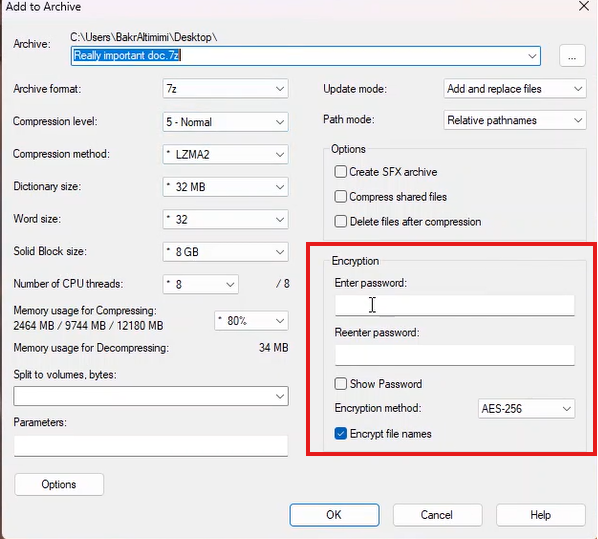
3. Enter thea Supportpassword Codefor encrypting
OnceUnder the QuickEncryption Assistsection, window appears, you’ll seeenter a promptpassword. askingThis for a code. Your IT support engineerpassword will providebe thisused code.by the recipient to decrypt the file.
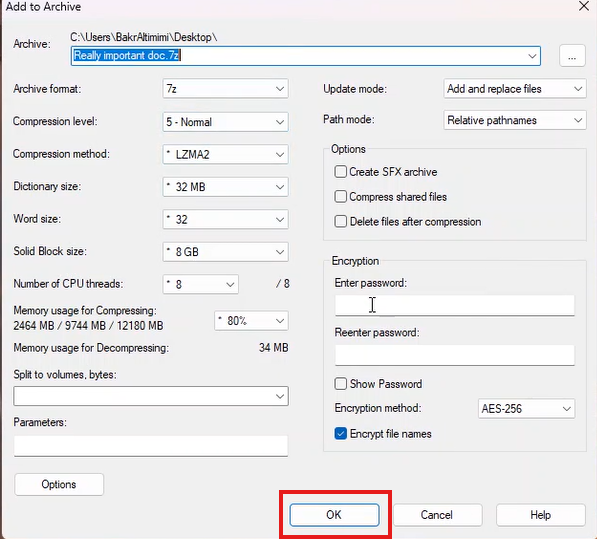
4. SubmitClick Ok
Click "OK" to finish the Codeencrypting
Type in the code and click Submit to initiate the remote session.process
5. AcceptTransfer file
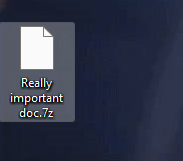
Finally we got our file encrypted, we can send this file as an attachment via outlook email. Make sure you send the Remotefile Session
Quick Assist will go through a brief loading screen, followed by a promptending with a.7z checkbox. Ticknot the boxactual andunencrypted click.docs Acceptfile. toThe confirmrecipient must also have 7-zip installed open the remote session.file.
6. Grant Control to the Support Engineer
Finally, your support engineer will request control of your machine. A toolbar will appear at the top of your screen. Click Allow to grant them control.
