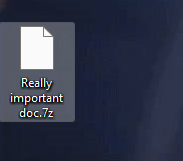
Outlook: How to encrypt Email Attachments using 7-ZIP
Quick Assist: Your Built-In Solution for Remote IT Support
Quick Assist is a Windows built-in remote software that enables IT support engineers to quickly connect to your machine and resolve IT issues remotely. Setting it up is simple and takes just a minute. Follow these easy steps:
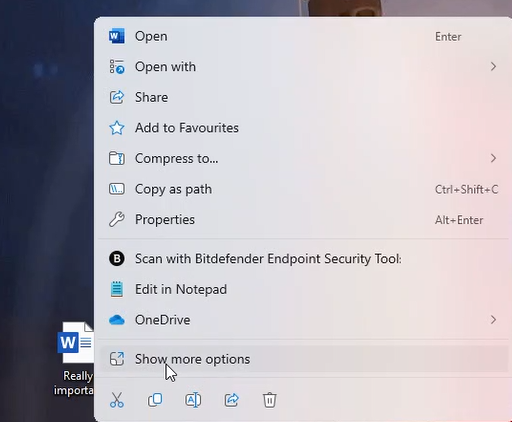
1. Right Click document
Find and right click the file you would like to encrypt. After right click find the "show more options" button and click it.
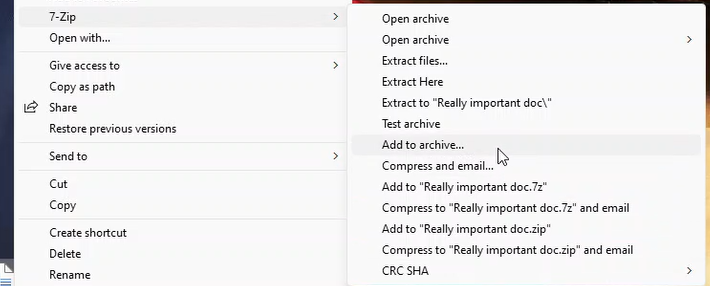
2. Add to archive
More options should appear, find the 7-zip option. In the sub-section of 7-zip select add to archive.
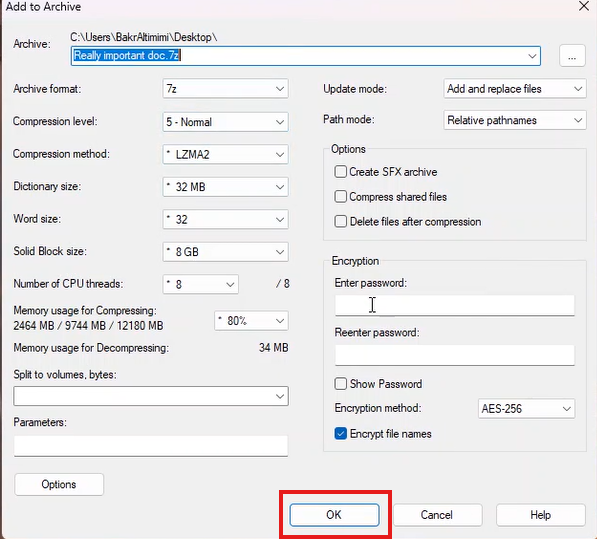
3. Enter a password for encrypting
Under the Encryption section, enter a password. This password will be used by the recipient to decrypt the file.
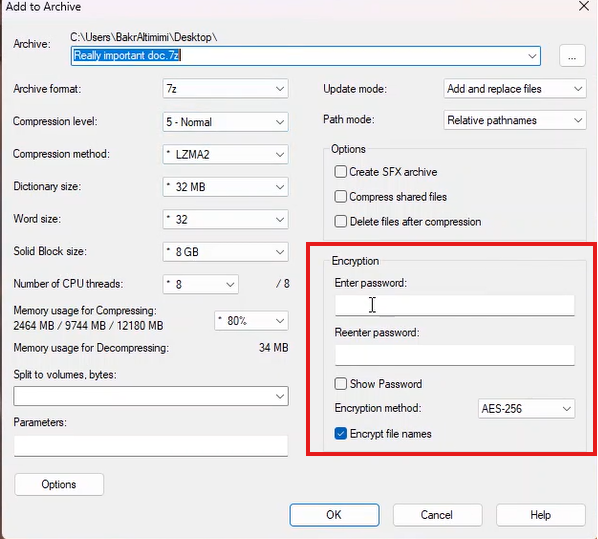
4. Click Ok
Click "OK" to finish the encrypting process
5. Transfer file
Finally we got our file encrypted, we can send this file as an attachment via outlook email. Make sure you send the file ending with .7z not the actual unencrypted .docs file. The recipient must also have 7-zip installed open the file.