
OpenVPN: How start a VPN connection
QuickWhat Assist:will Yourbe Built-In Solution for Remote IT Supportcovered:
Quick
- How
isstart the OpenVPN Application - How to start a
WindowsVPNbuilt-inConnection
1. Open the Start Menu
Press the Windows key on your keyboard to bring up the Start Menu.

2. Search for QuickOpenVPN AssistGUI
Type Quick AssistOpenVPN in the search bar, then press Enter to open it.
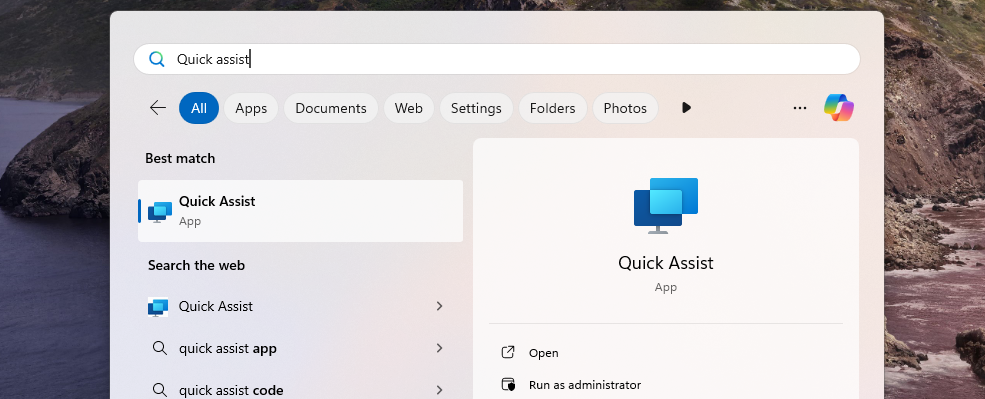
3. EnterOpen the SupportVPN CodeApplication
Once theOpenVPN Quickhas Assiststarted windowa appears,desktop you’llicon with lock should appear bottom right of your screen. If you are unable to see ait, promptnavigate askingto forthe aup-arrow code.menu Youricons ITand supportdrag engineerit willdown provideto thisthe code.taskbar.
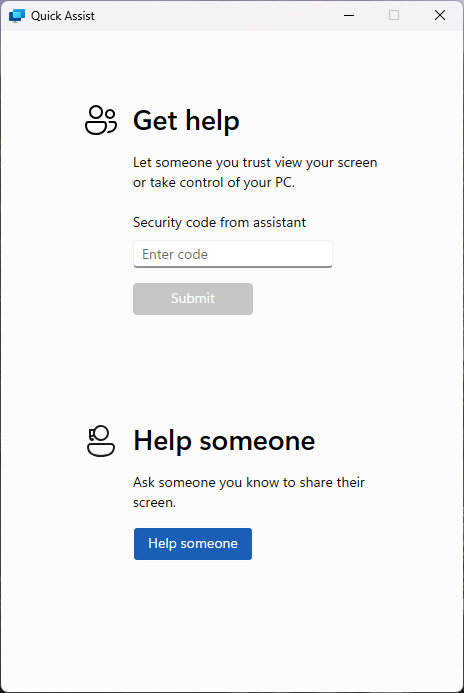
4. SubmitCheck theavailable CodeVPN connections
TypeA inVPN theconnection codeshould andall-ready clickbe Submitavailable to initiateconnect theto. remoteIf session.no VPN connection are present then contact IT support.
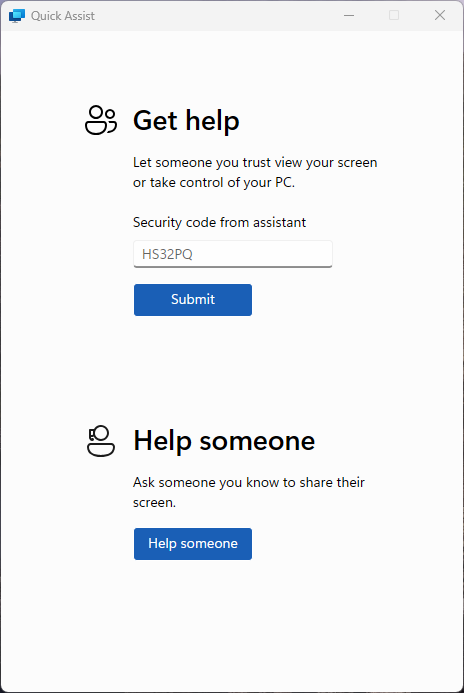
5. AcceptConnect to a VPN
Right click the RemoteVPN Session
Quick Assist will go through a brief loading screen, followed by a prompt with a checkbox. Tick the boxconnection and click Acceptconnect to confirmon the remotenew session.menu that appears. It should ask you for authentication before a VPN link can be established. This would of been provided by your MSP.
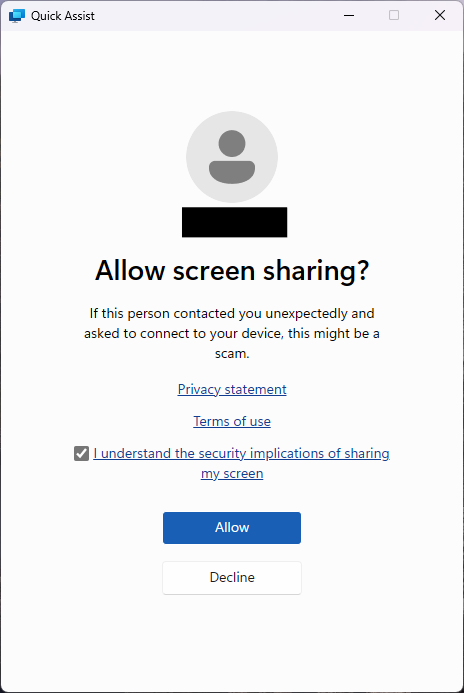
6. GrantVerify Control to the Support Engineerconnection
Finally, your support engineer will request control of your machine. A toolbar will appear at the top of your screen. Click Allow to grant them control.
