
OpenVPN: How start a VPN connection
What will be covered:
- How start the OpenVPN Application
- How to start a VPN Connection
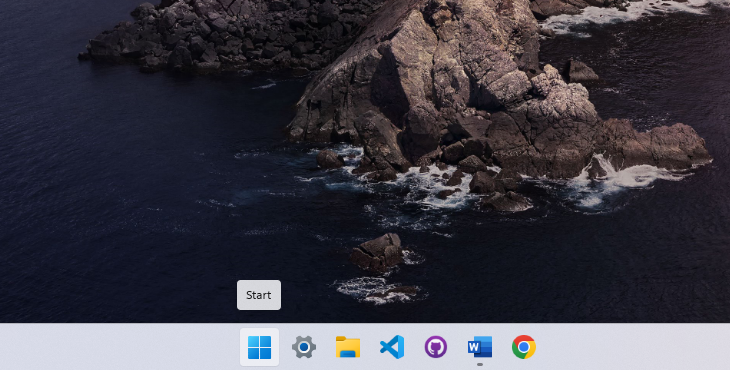
1. Open the Start Menu
Press the Windows key on your keyboard to bring up the Start Menu.
2. Search for OpenVPN GUI
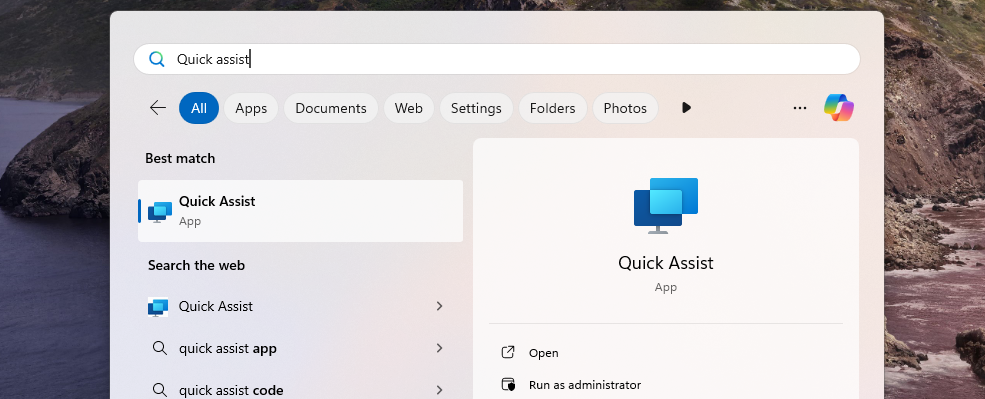
Type OpenVPN in the search bar, then press Enter to open it.
3. Open the VPN Application
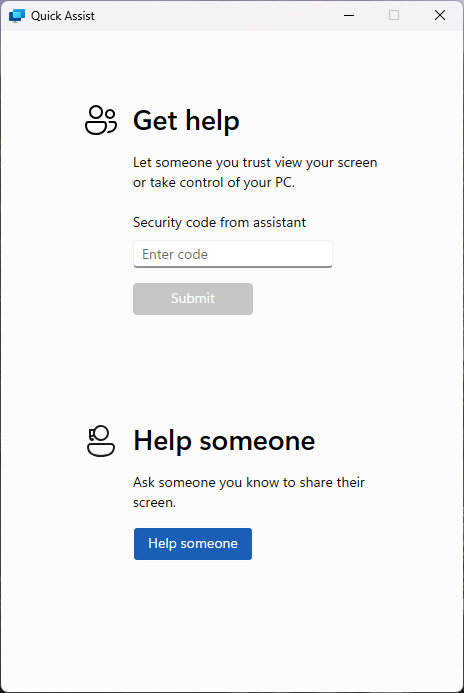
Once OpenVPN has started a desktop icon with lock should appear bottom right of your screen. If you are unable to see it, navigate to the up-arrow menu icons and drag it down to the taskbar.
4. Check available VPN connections
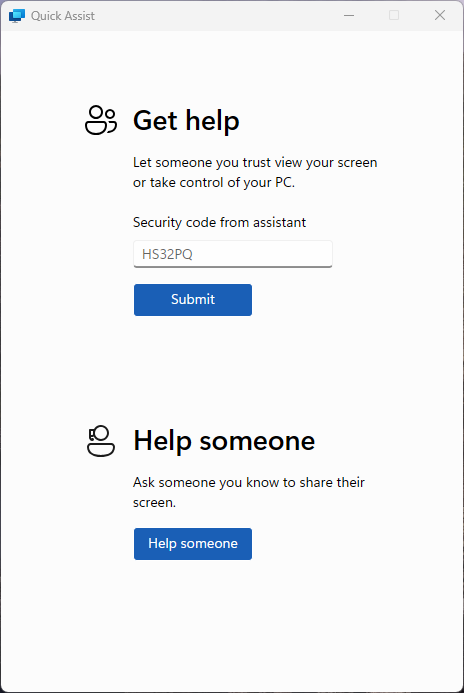
A VPN connection should all-ready be available to connect to. If no VPN connection are present then contact IT support.
5. Connect to a VPN
Right click the VPN connection and click connect on the new menu that appears. It should ask you for authentication before a VPN link can be established. This would of been provided by your MSP.
6. Verify connection
Finally,
