
Office: Converting a file into a PDF
QuickYou Assist:might Yourrequire Built-Into Solution for Remote IT Support
Quick Assist issave a Windowsdocument built-in remotePDF softwareformat. thatThis enablesarticle ITshows supportyou engineershow to quicklyconvert connecta toword yourdocument machineinto anda resolvePDF. ITalthough issueswe remotely.have Settingdemonstrated it upusing isword simpleit andwill takeswork juston aexcel, minute.PowerPoint... Follow these easy steps:etc
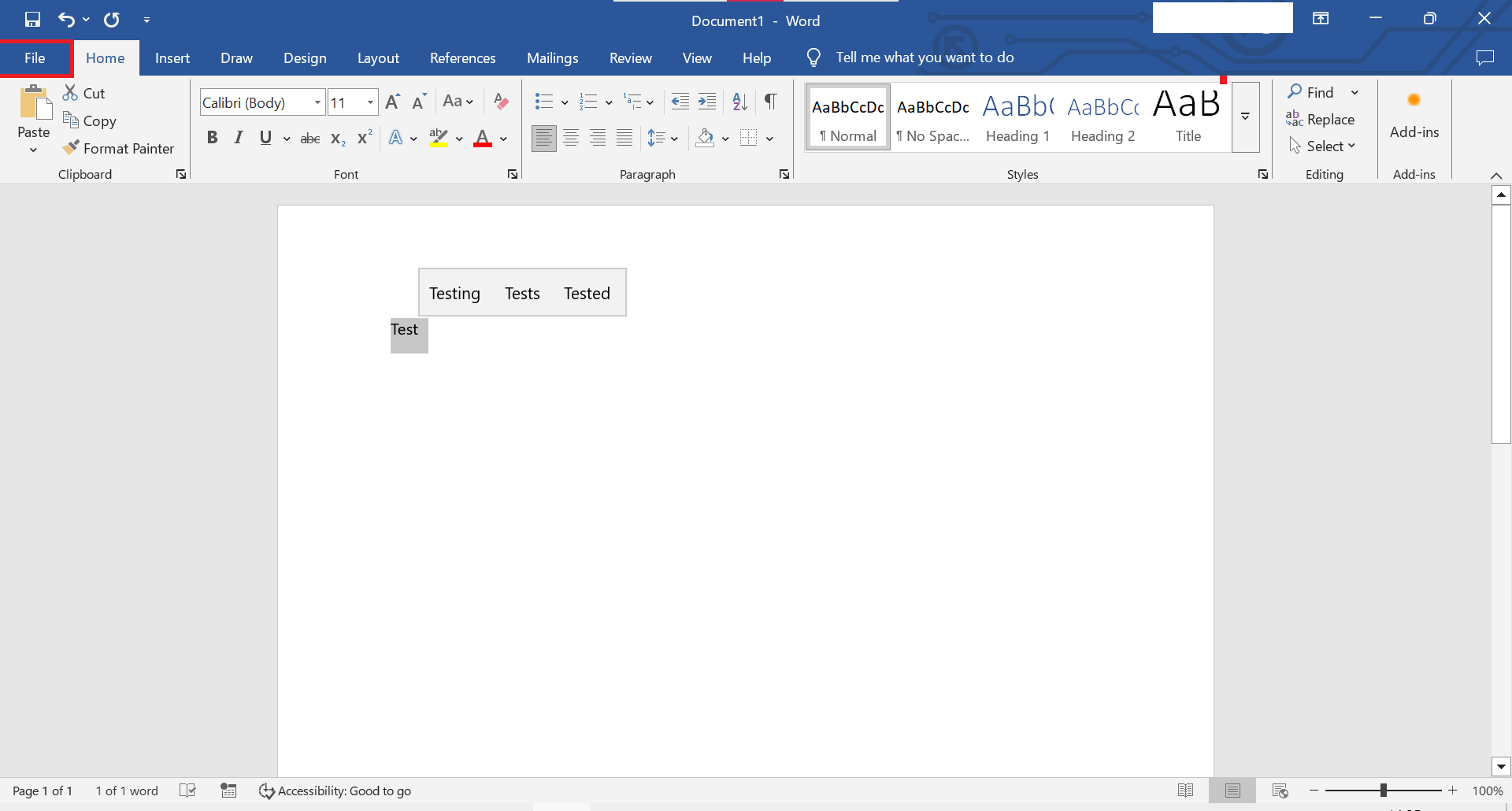
1. Open theFile StartTab Menu
PressTop-right theclick WindowsFile key on your keyboard to bring up the Start Menu.Tab.
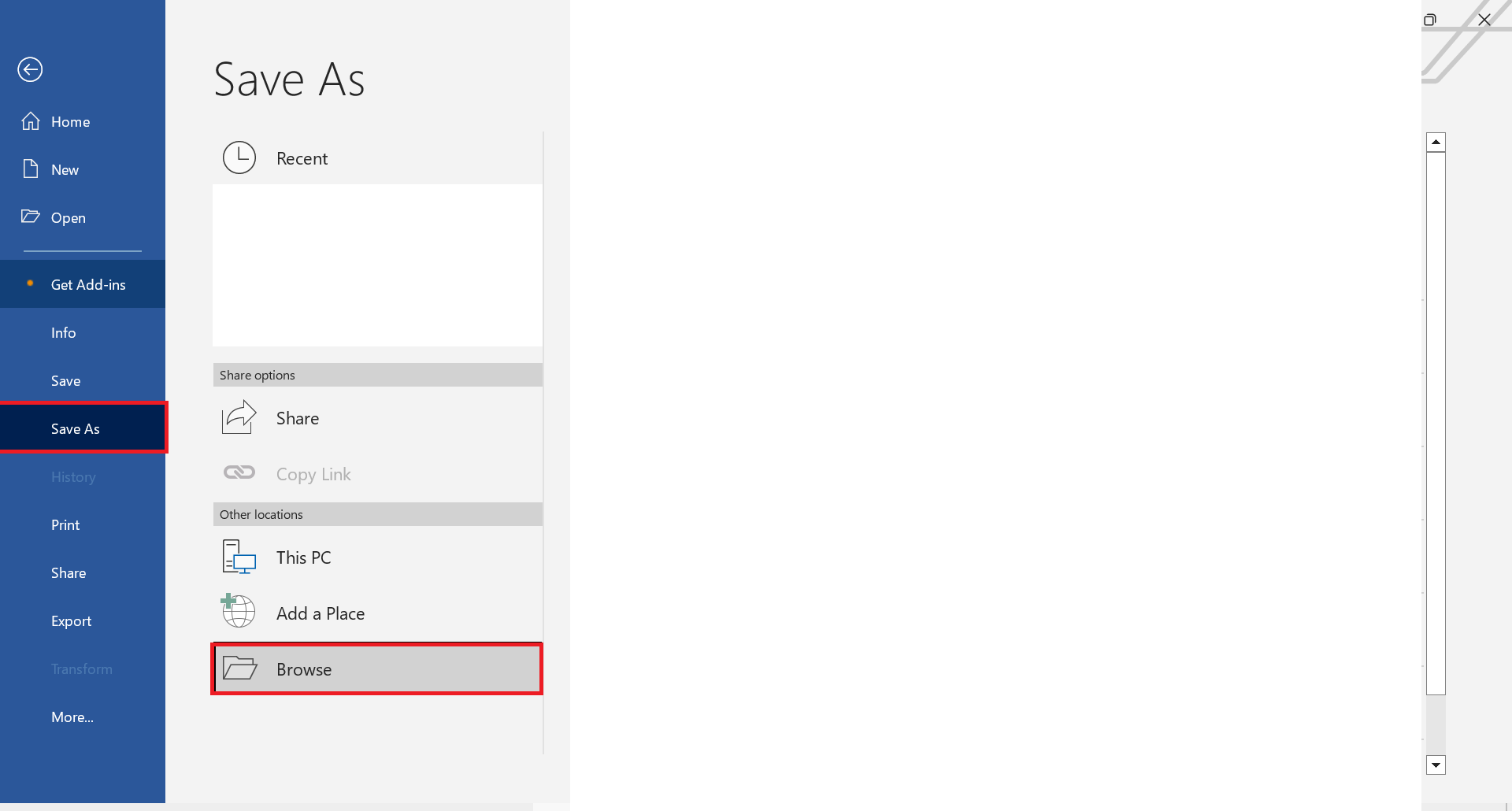
2. SearchSave As Tab
Inside save as tab, look for Quick Assist
Type Quick Assist in the searchbrowse bar, then press Enter to open it.button.
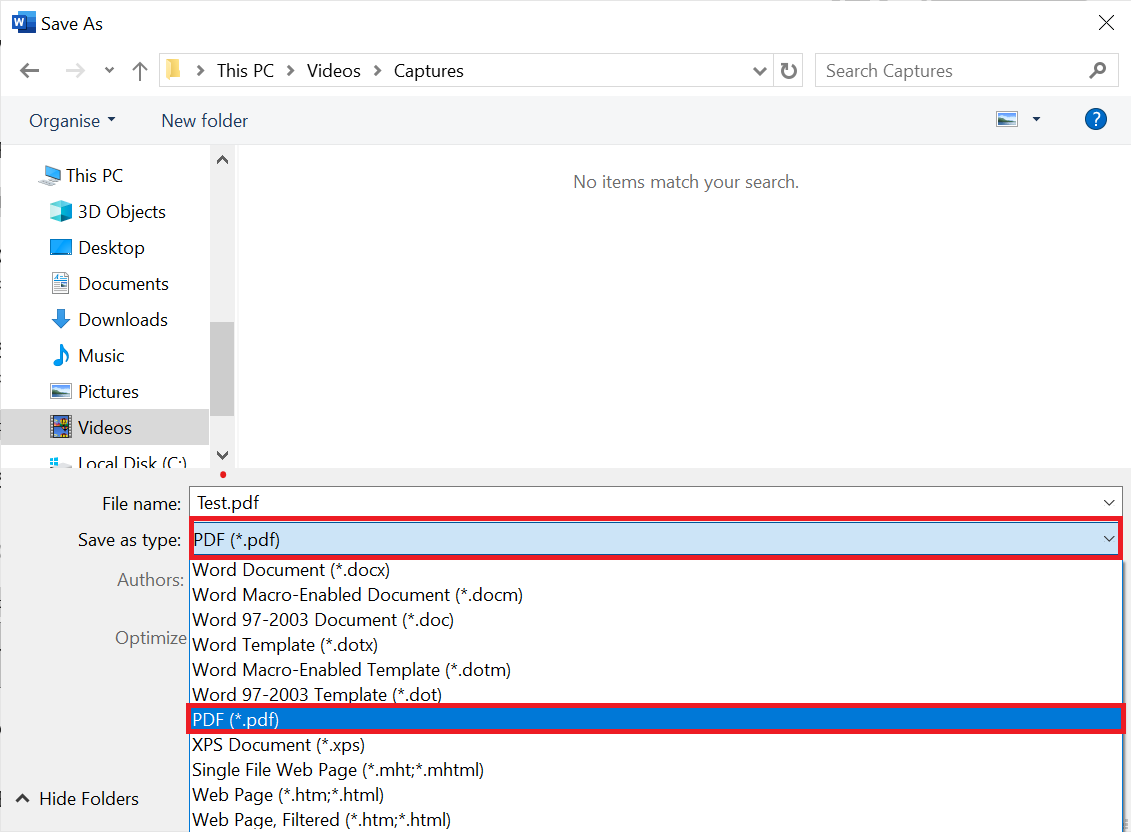
3. EnterSave as type PDF
Under the Supportfile Codename,
Onceyou thecan Quickselect Assistwhat windowfile appears,type you’llyou seewould like to save your word document as. Make sure you have already saved it as a promptWord askingdoc forbefore saving it as a code. Your IT support engineer will provide this code.PDF.
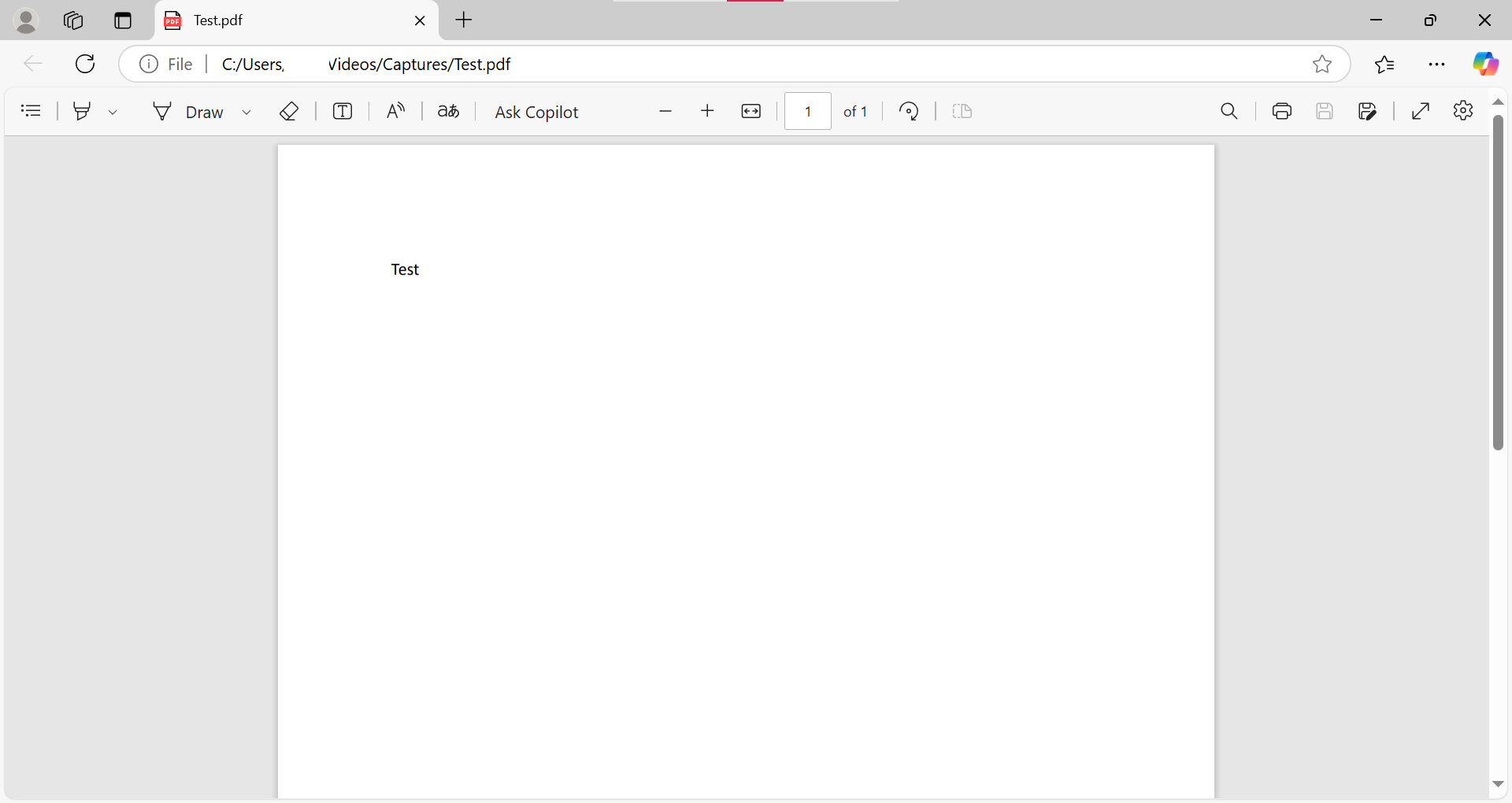
4. SubmitConverted to PDF
As soon as you click save, it will open the Code
Type in the code and click Submit to initiate the remote session.PDF.
5. Accept the Remote Session
Quick Assist will go through a brief loading screen, followed by a prompt with a checkbox. Tick the box and click Accept to confirm the remote session.
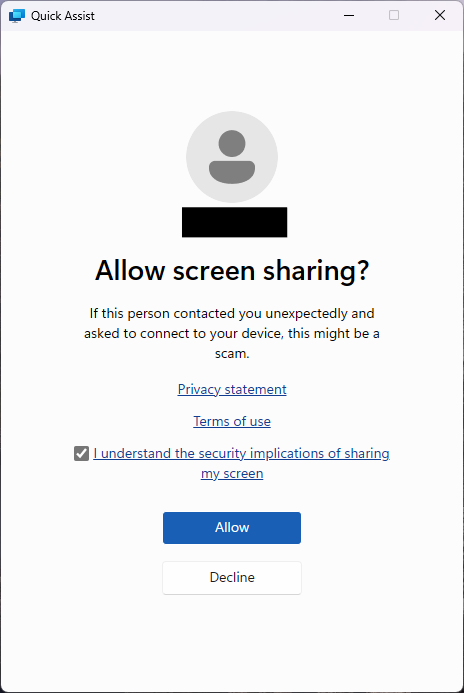
6. Grant Control to the Support Engineer
Finally, your support engineer will request control of your machine. A toolbar will appear at the top of your screen. Click Allow to grant them control.
