
Networking: Troubleshooting Internet connection Issues
Internet Issues can arise unexpected and can cause disruption to your work. Some issues can be caused due to loosen connections, other times it could be software misconfiguration. In this short article, we will look into the most common network issues.
Things to consider when troubleshooting network issues:
1. Network cable (known as an ethernet cable)
2. Globe icon instead of a computer icon.
3. Not able to access websites
4. Other staff not able to connect
1. Refresh the site
Sometimes there is no issue with your internet connection but rather the website itself is having some issues. To make sure of that, simply look at the network icon on the bottom left of screen.

Figure 1 Network icon showing the computer is connected to the internet

Figure 2 Network icon showing no connection to the internet.
If the network icon is showing a connection to the internet, then the issue could be with the website itself and not your computer. However, if you don’t have connection to the internet then, the issue is with your machine. In this case, give it a minute because it could be a momentarily disconnection from the internet.
2. Checking the network interface
The network interface is where your computer receives and sends data across the internet. Your interface can be Wi-Fi or a physical network port behind your computer. We can check if these interfaces are functioning correctly.
1. Click CTRL + R to open Run (Bottom Left)
2. Type ncpa.cpl
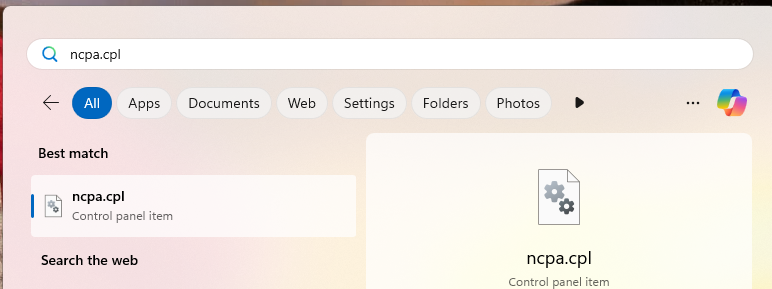
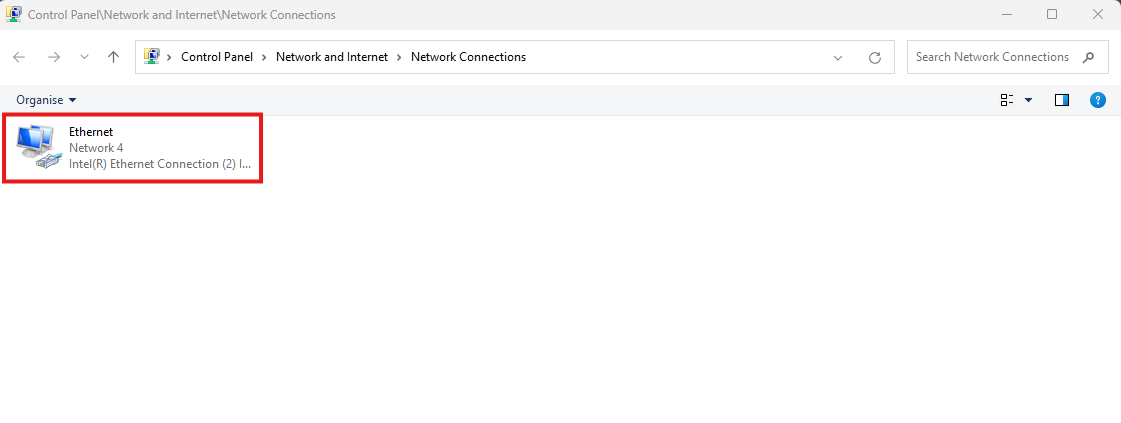
3. Find the Ethernet or WIFI Interface
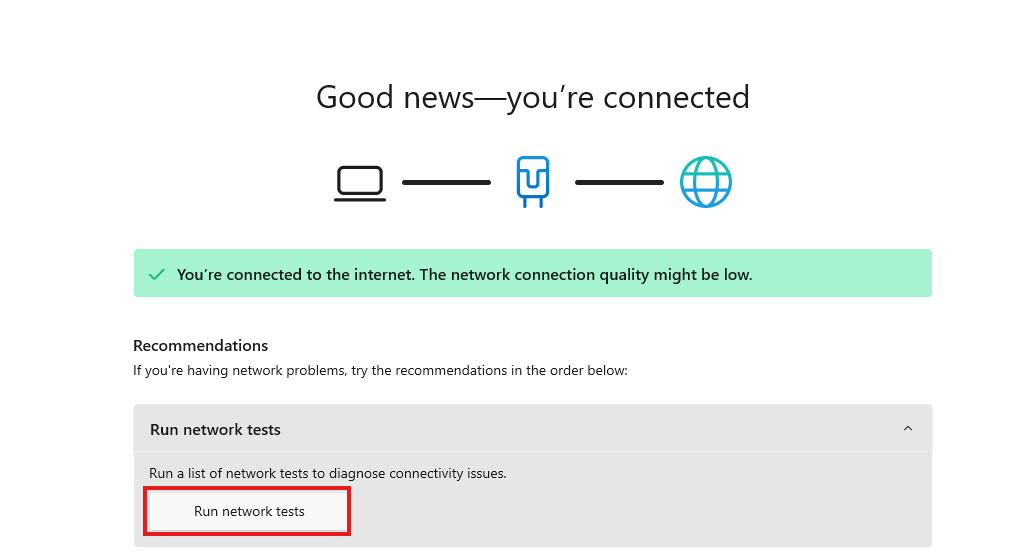
4. In the event of a misconfigured, Open the interface by double clicking it. Find and click “Diagnose” and follow its instructions.
3. Loose network cable
The network cable is commonly referred to as the ethernet cable. This is a physical cable that connects to your physical ethernet interface on your computer to a switch or patch port on the wall.
Like anything that connects to a computer, it can get easily loose over time or damaged in some cases.
Make sure both ends of the cable are connected correctly to their respective interfaces. These interfaces also have a green and amber LED indicators that flash frequently to indicate they are working.
If the cable is faulty or a loose connection, then the LED will not light up.
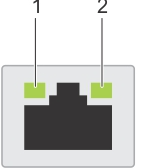
Figure 3 Network interface.