# Remote Desktop | Enabling Multiple Monitors
**Quick and Easy Guide Showing How to Enable "Use All My Monitors" in Remote Desktop**
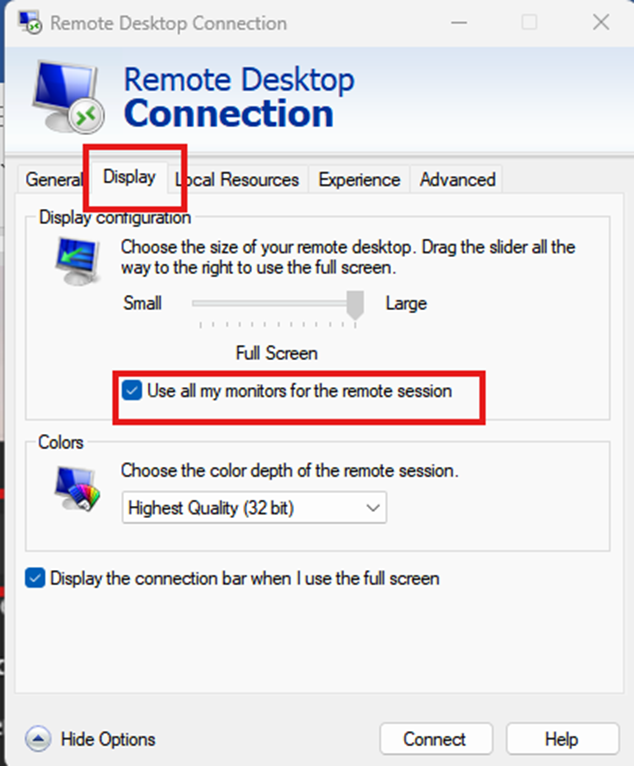
This option must be ticked if you want to see your other monitors in the remote session.
---
### 1. Editing Remote Desktop Configuration - Right Click edit
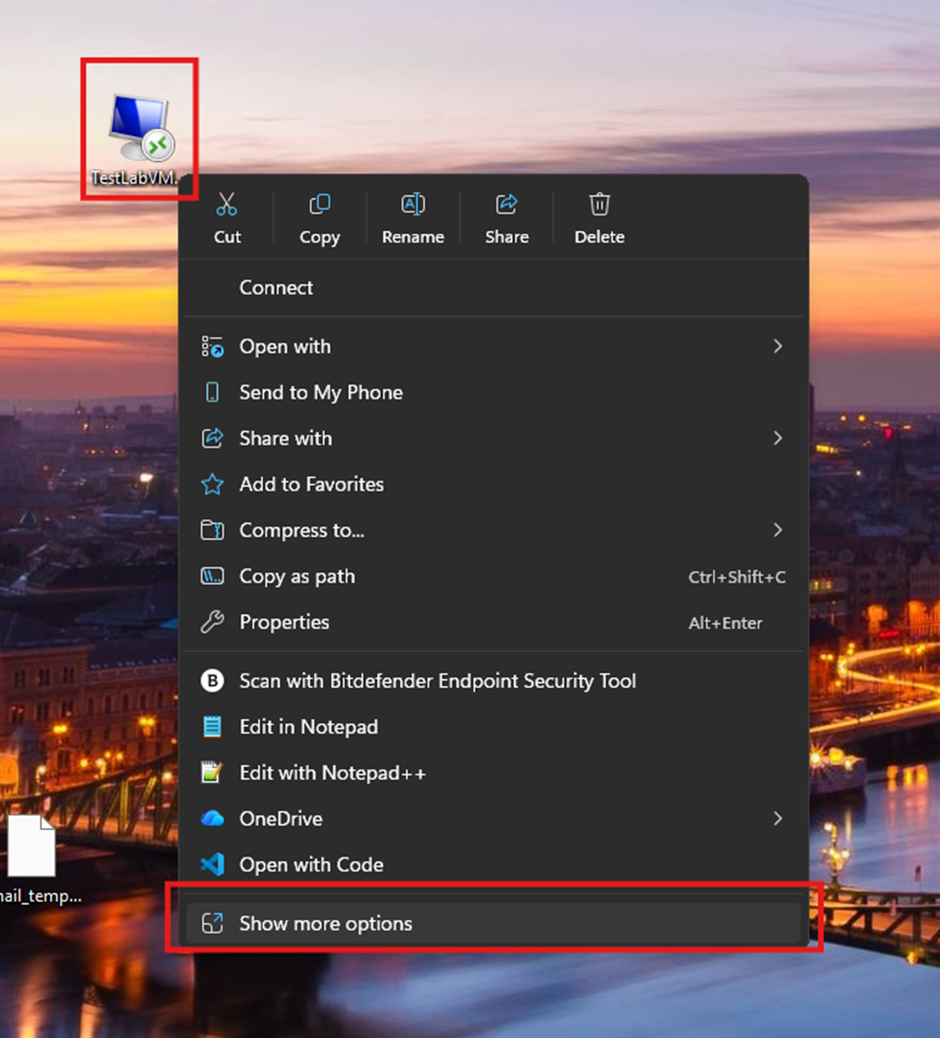
Find the Remote Desktop icon file you want to configure. Right-click > Show more options > Edit.
On Windows 10, you won't see "Show more options." Instead, you will see the Edit button instantly.
[](https://kb.9.technology/uploads/images/gallery/2026-10/YvpclijBW0qiXLSP-image.png)[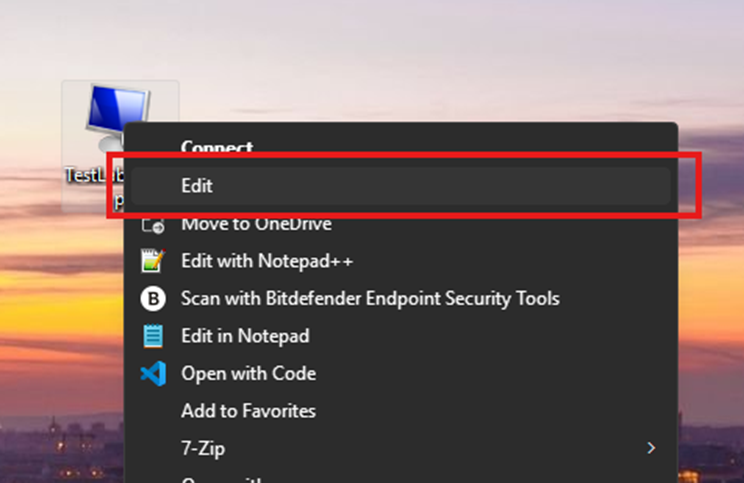](https://kb.9.technology/uploads/images/gallery/2026-10/mdTLsmJY0CXGDDov-image.png)
---
### 2. Enabling the multiple screen option - Display settings RDP
Now, inside the RDP settings for the RDP file, click Display. Then, make sure "Use all my monitors for the remote session" is ticked, as shown in the image below.
[](https://kb.9.technology/uploads/images/gallery/2026-10/sC7A4srKV2klmtVc-image.png)
---
### 3. Saving and Overwriting current RDP file - Save as
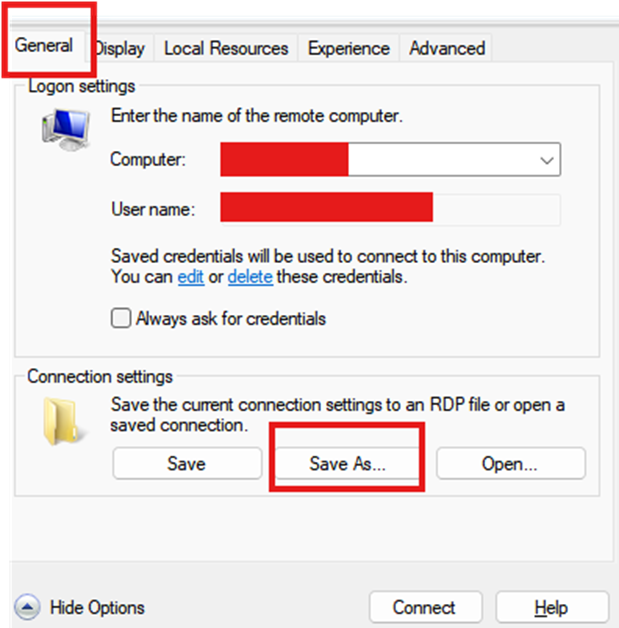
Inside the RDP settings, click on the General tab > Save As.
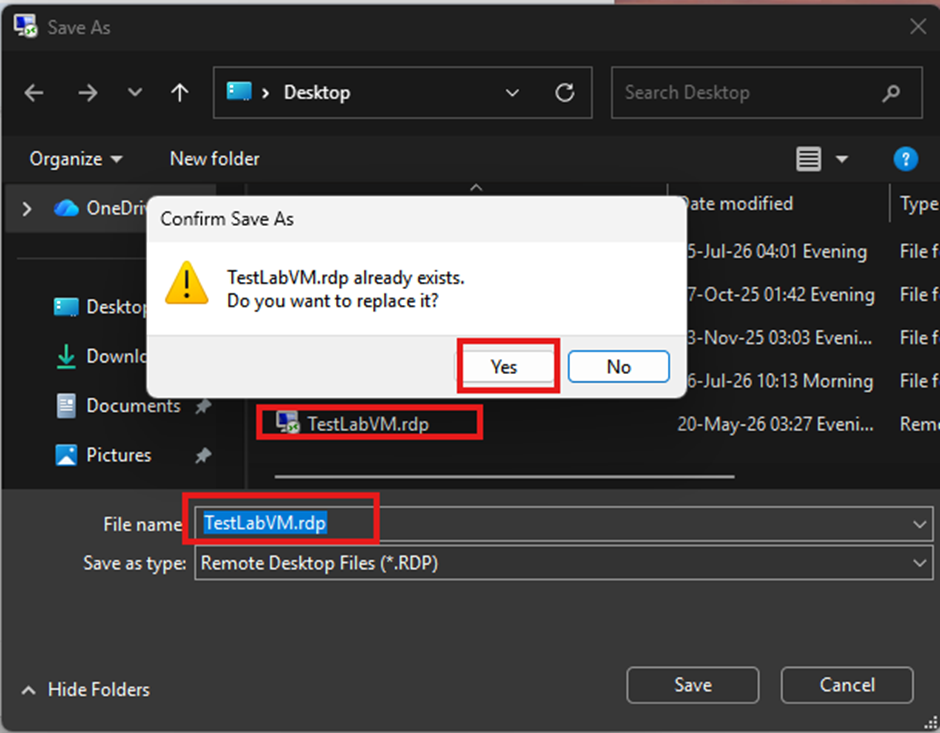
Next, make sure you are in the same folder that the RDP file is in, then, keeping the same name, click Save.
This will prompt Windows to ask you if you wish to overwrite the file. Click Yes.
[](https://kb.9.technology/uploads/images/gallery/2026-10/9ehsh03NcwDpelh5-image.png)
[](https://kb.9.technology/uploads/images/gallery/2026-10/9jwhqCW29kBKRVEW-image.png)
---
### 4. Open the RDP file
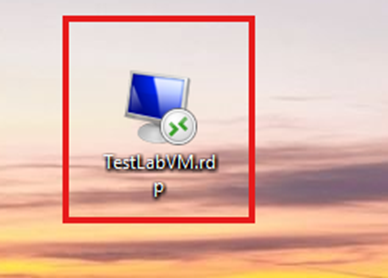
Now go back to the RDP file, double-click it, and connect to the remote.
Now you should see your other monitors displaying the remote session as well.
[](https://kb.9.technology/uploads/images/gallery/2026-10/fi7GpXy4V8PNEKug-image.png)