Outlook: How to Add a Shared Mailbox (Classic Outlook)
What will be covered:
- How to open a shared mailbox on Classic Outlook
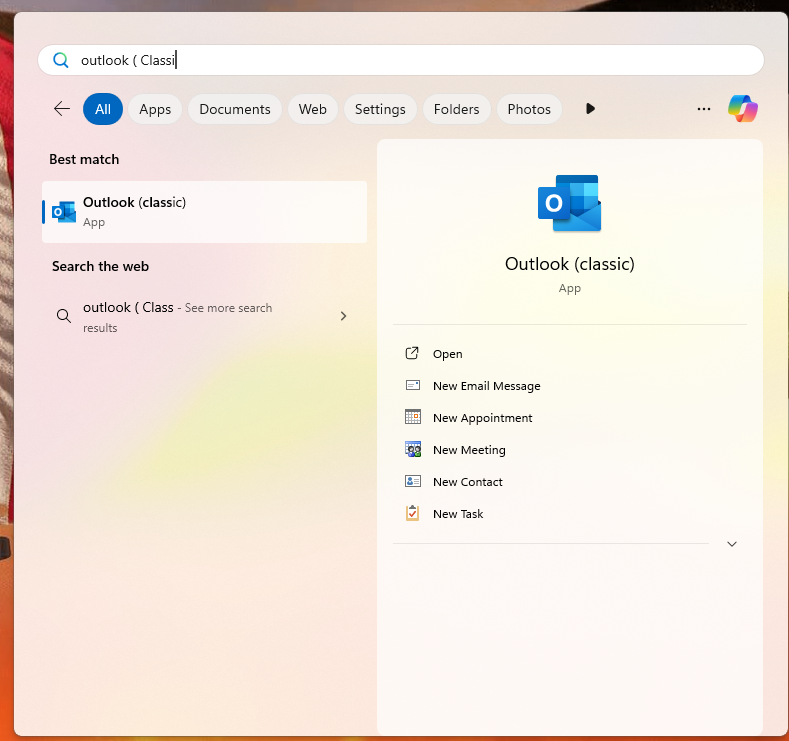
1. Open Outlook app (Classic)
Press the Windows key on your keyboard to bring up the Start Menu, Search Outlook.
2. Outlook Settings
Select the File tab on the ribbon (top left), then select Account Settings > Account Settings.
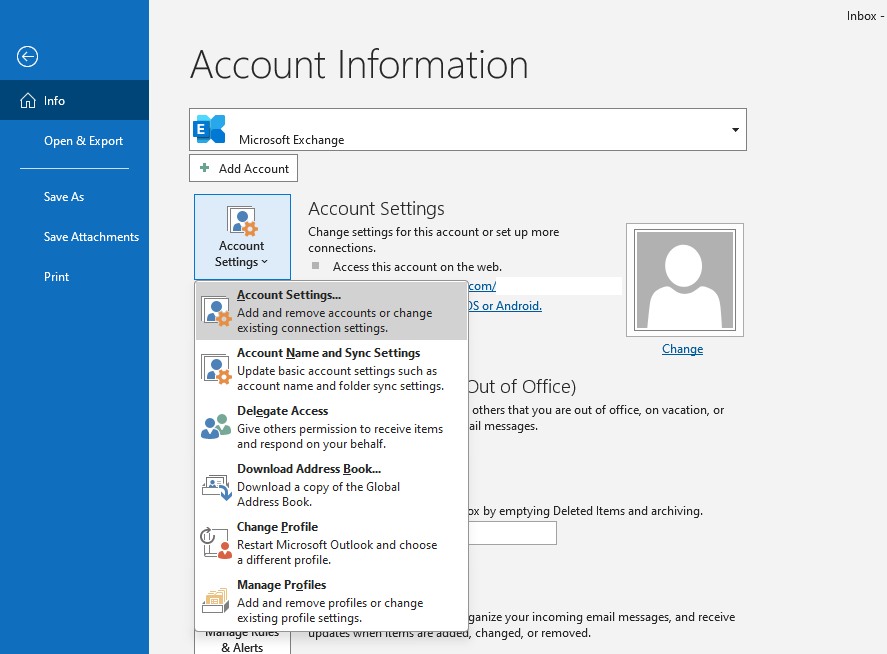
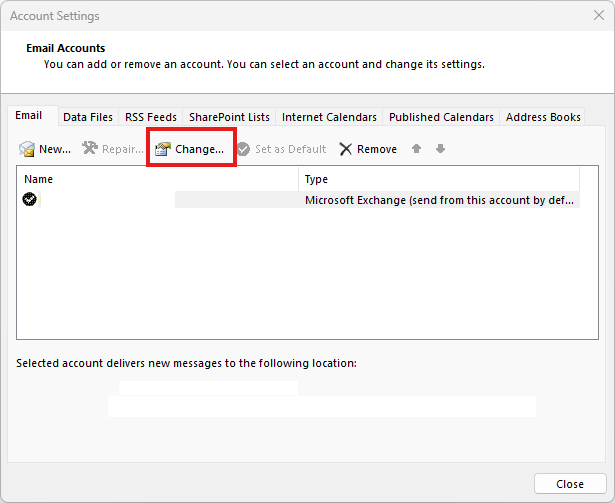
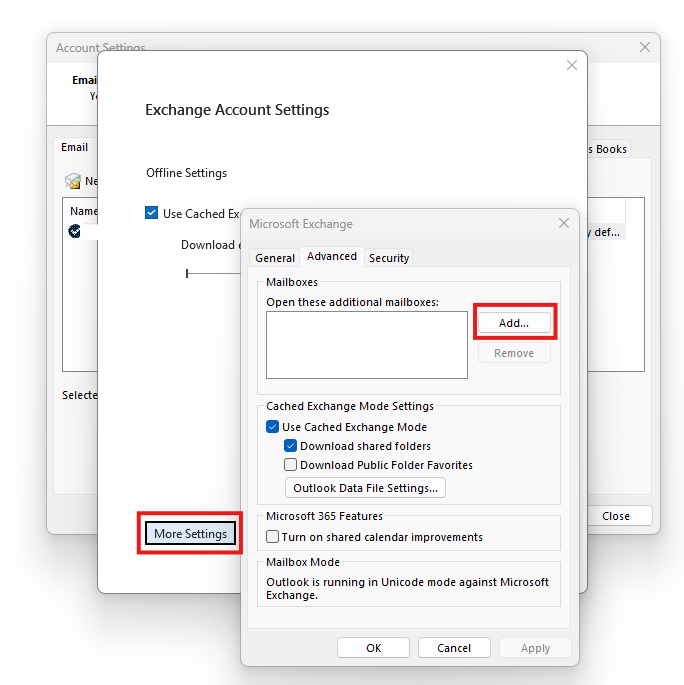
3. Account Settings
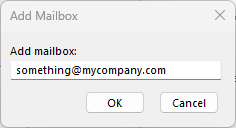
Select the Email tab. Make sure the correct account is highlighted, then choose Change. Choose More Settings > Advanced > Add. Type the shared email address, such as info@contoso.com. Choose OK > OK. Choose Next > Finish > Close.