VPN & Remoting
Documentation on OpenVPN
- OpenVPN GUI: How to start a VPN connection
- OpenVPN Connect: How to Start a VPN connection
- Remote Desktop | Enabling Multiple Monitors
OpenVPN GUI: How to start a VPN connection
What will be covered:
- How start the OpenVPN Application
- How to start a VPN Connection
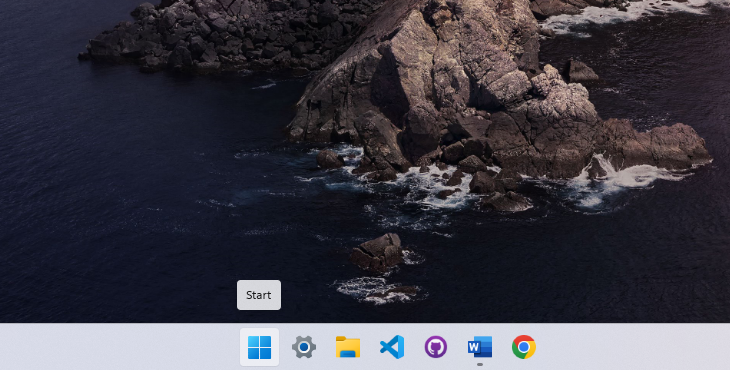
1. Open the Start Menu
Press the Windows key on your keyboard to bring up the Start Menu.
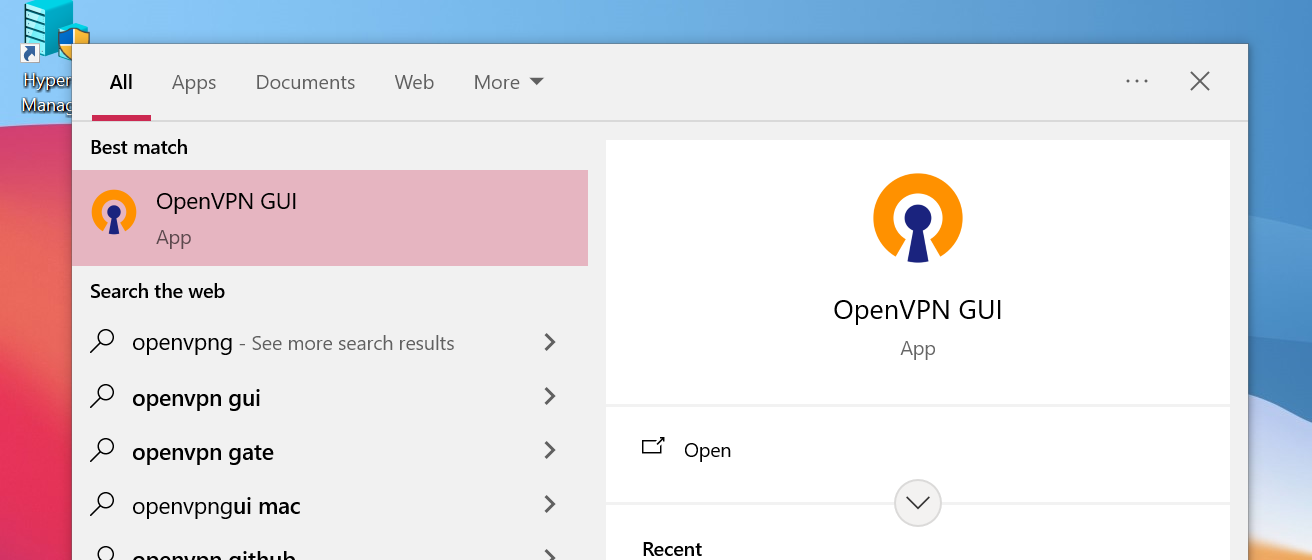
2. Search for OpenVPN GUI
Type OpenVPN in the search bar, then press Enter to open it.
3. Open the VPN Application
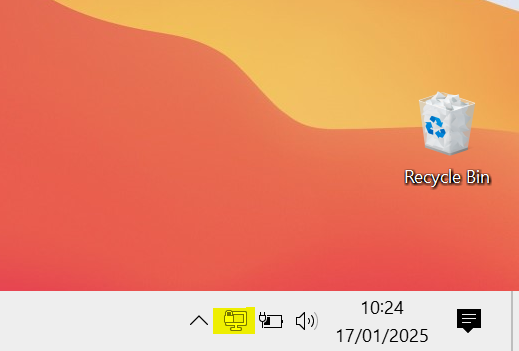
Once OpenVPN has started a desktop icon with lock should appear bottom right of your screen. If you are unable to see it, navigate to the up-arrow menu icons and drag it down to the taskbar. Right Click the icon to open the OpenVPN Menu.
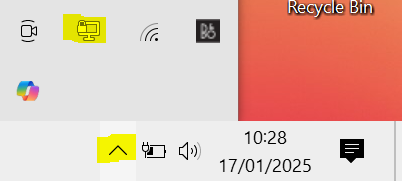
4. Check available VPN connections
A VPN connection should all-ready be available to connect to. If no VPN connection are present then contact IT support.
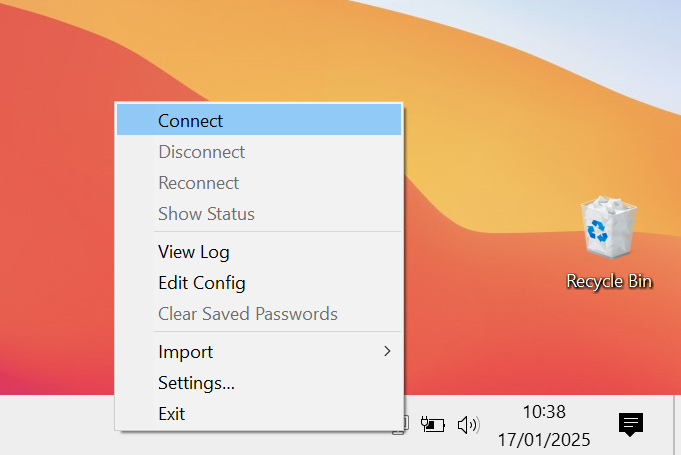
5. Connect to a VPN
Right click the VPN connection and click connect on the new menu that appears. It should ask you for authentication before a VPN link can be established. This would of been provided by your MSP.
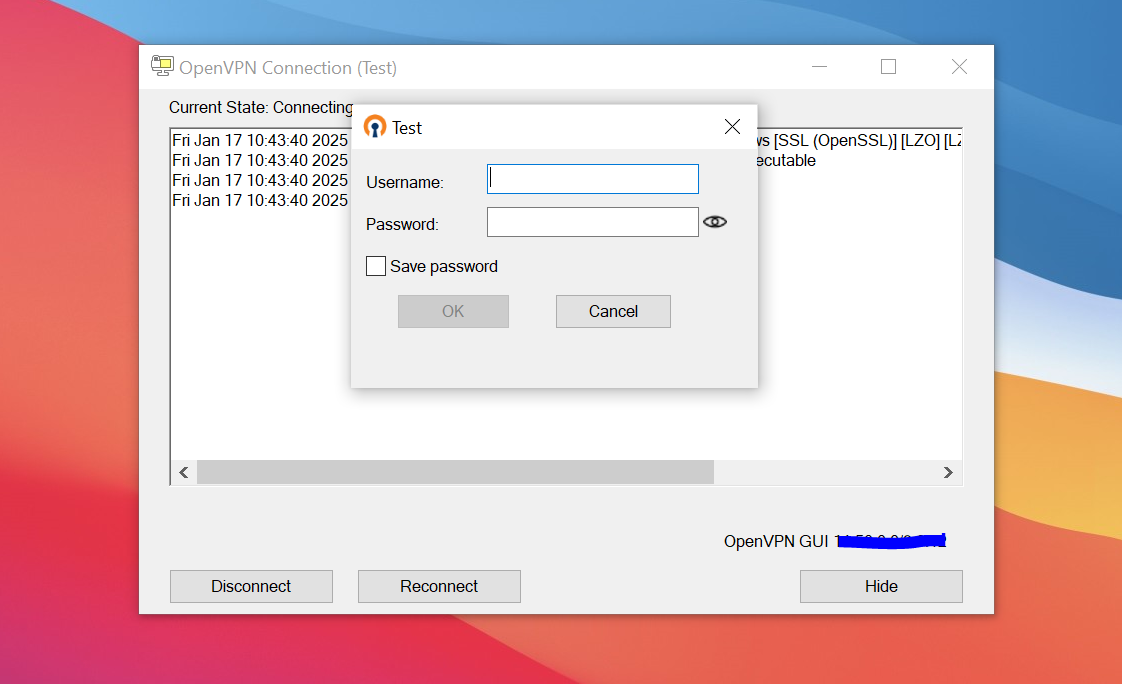
6. Verify connection
Finally, after the connection has been successful, you should be notified that the connection has been established. You should also see the Icon changing to green.
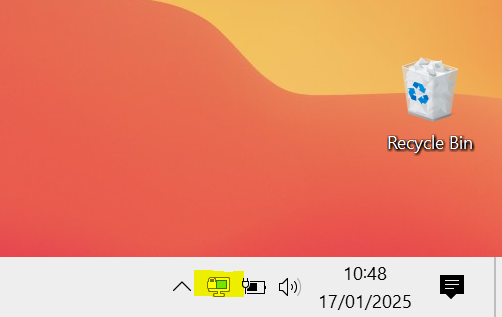
OpenVPN Connect: How to Start a VPN connection
Quick guide showing how to connect to a VPN via the OPENVPN CONNECT software.
1. Open Tray Icon
In the tray, Find the icon below.
If the Application doesn't appear in the tray, Click the windows button and search "OpenVPN Connect". Open the Application.
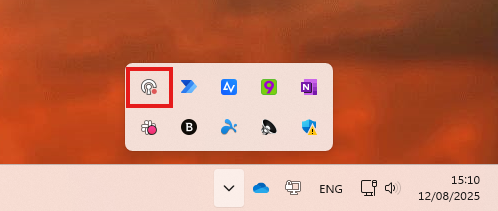
OR
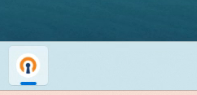
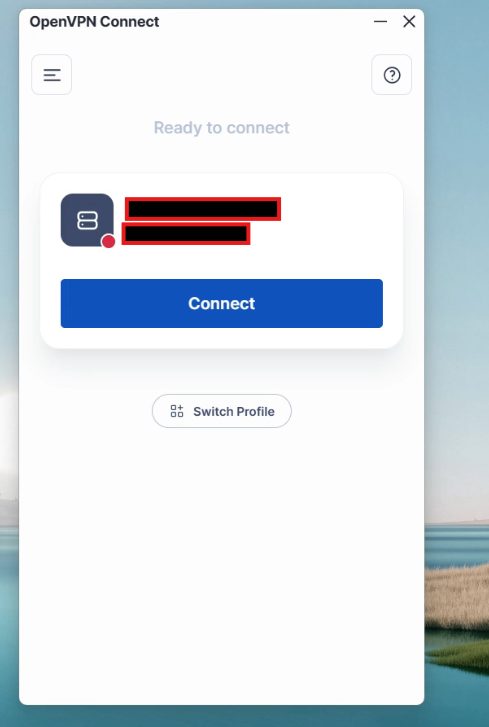
2. Select the VPN Configuration
Click Connect.
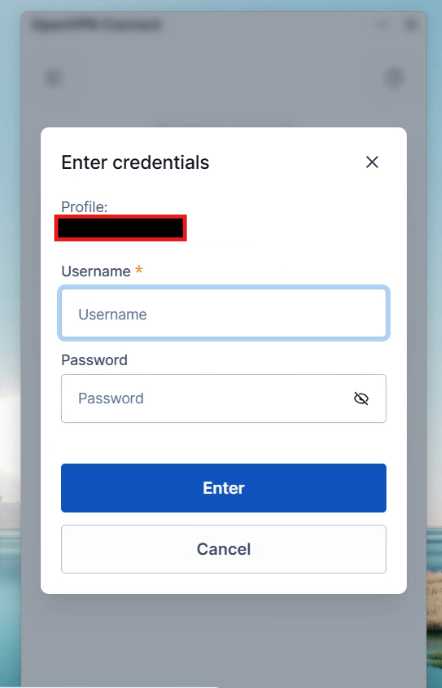
3. Enter in your credentials (If they are not autosaved)
This might be related to your computer login or a credential we have provided you with.
Remote Desktop | Enabling Multiple Monitors
Quick and Easy Guide Showing How to Enable "Use All My Monitors" in Remote Desktop
This option must be ticked if you want to see your other monitors in the remote session.
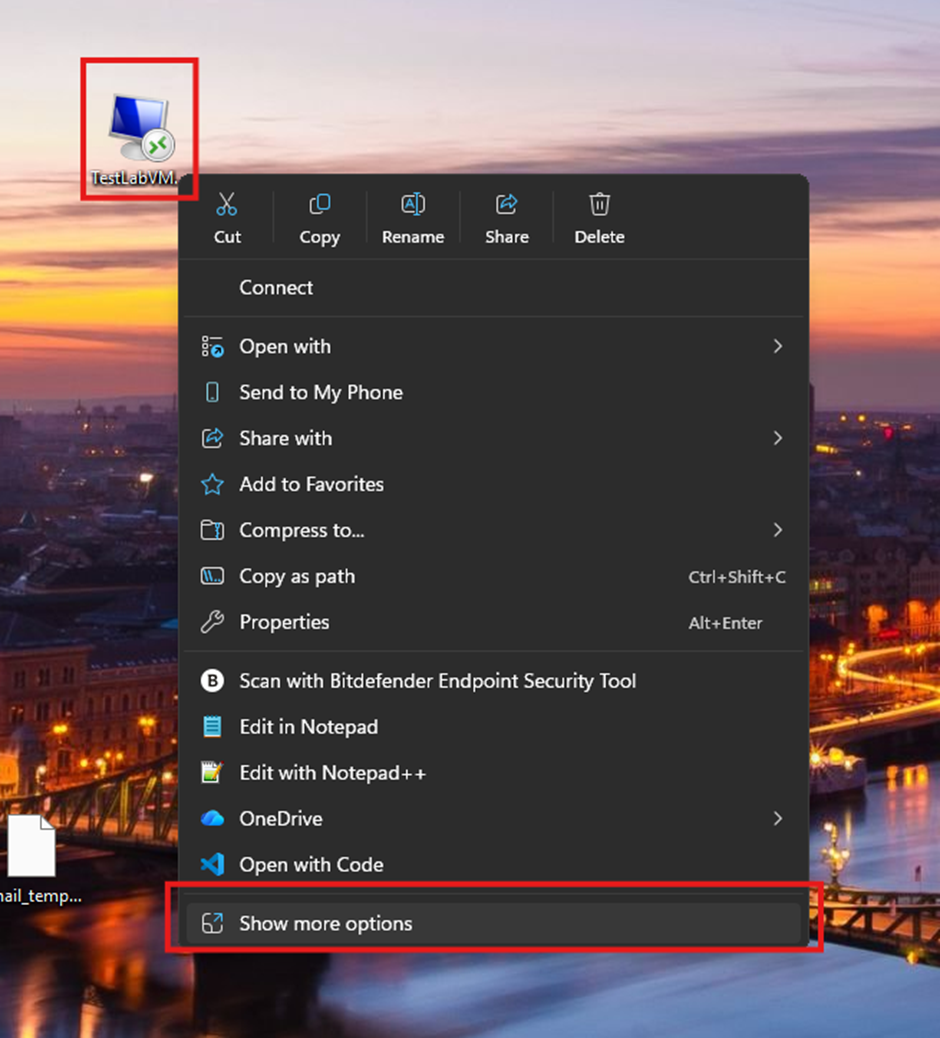
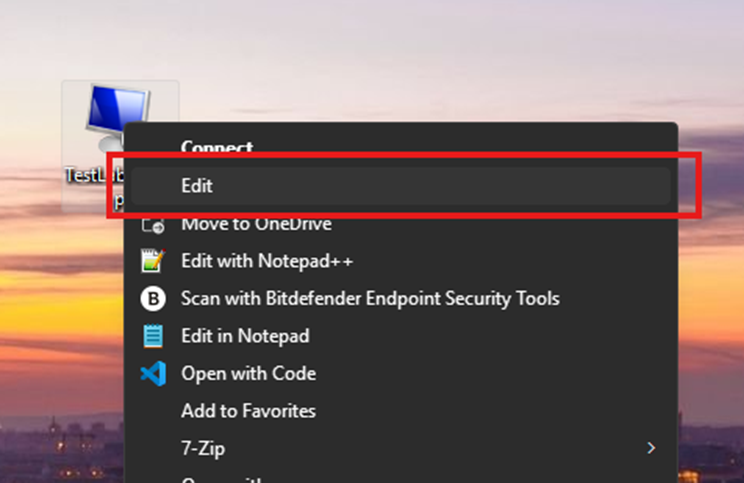
1. Editing Remote Desktop Configuration - Right Click edit
Find the Remote Desktop icon file you want to configure. Right-click > Show more options > Edit.
On Windows 10, you won't see "Show more options." Instead, you will see the Edit button instantly.
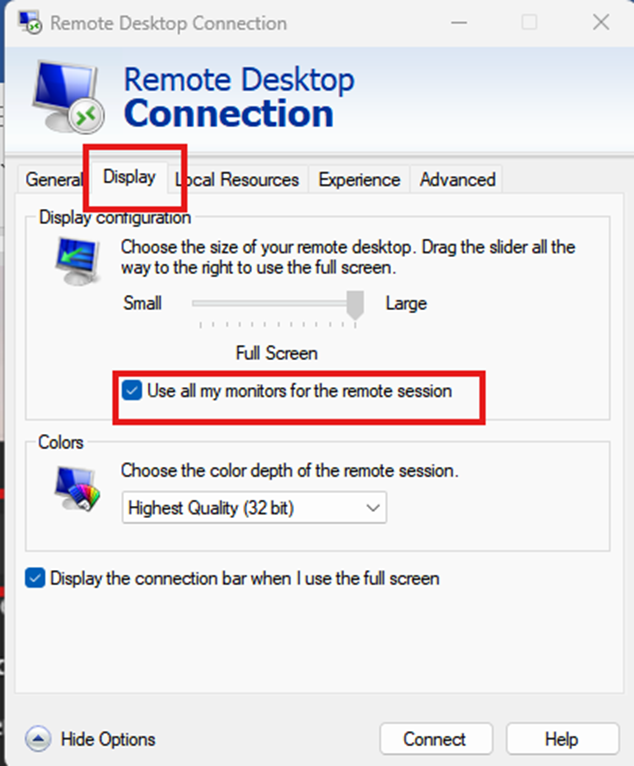
2. Enabling the multiple screen option - Display settings RDP
Now, inside the RDP settings for the RDP file, click Display. Then, make sure "Use all my monitors for the remote session" is ticked, as shown in the image below.
3. Saving and Overwriting current RDP file - Save as
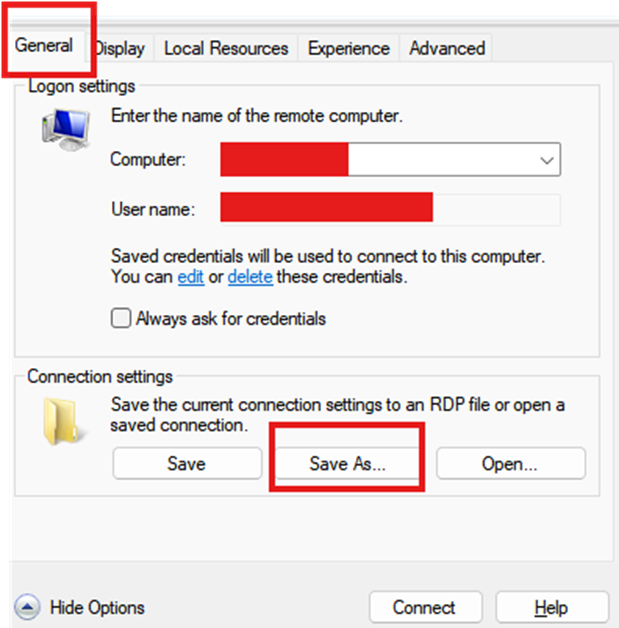
Inside the RDP settings, click on the General tab > Save As.
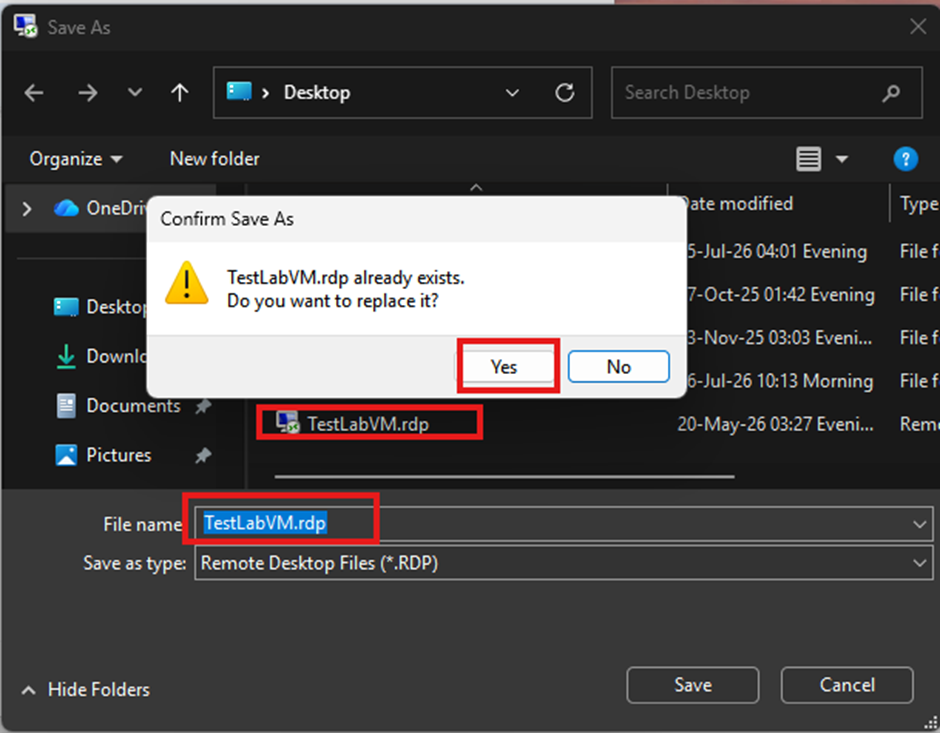
Next, make sure you are in the same folder that the RDP file is in, then, keeping the same name, click Save.
This will prompt Windows to ask you if you wish to overwrite the file. Click Yes.
4. Open the RDP file
Now go back to the RDP file, double-click it, and connect to the remote.
Now you should see your other monitors displaying the remote session as well.