# Microsoft 365 (OneDrive, Sharepoint, Outlook... etc)

Articles regarding Microsoft 365 issues

# Microsoft 365: How to set up the Microsoft Authenticator app

---

### 1. Open the Start Menu

Press the **Windows** key on your keyboard to bring up the Start Menu.

[![1.jpg](https://kb.9.technology/uploads/images/gallery/2025-02/EWjF8Bvsh0d2E6NQ-1.jpg)](https://kb.9.technology/uploads/images/gallery/2024-11/2WDtCJ6jFza9AJyx-screenshot-2024-11-26-095624.png)
---

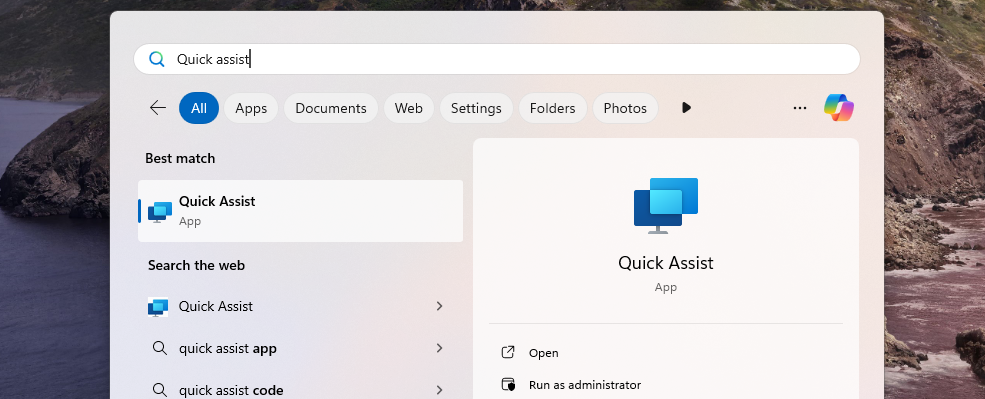
### 2. Search for Quick Assist

Type **Quick Assist** in the search bar, then press **Enter** to open it.

[![Screenshot 2024-11-26 095708.png](https://kb.9.technology/uploads/images/gallery/2024-11/scaled-1680-/utczsZAOOCLSE5MN-screenshot-2024-11-26-095708.png)](https://kb.9.technology/uploads/images/gallery/2024-11/utczsZAOOCLSE5MN-screenshot-2024-11-26-095708.png)
---

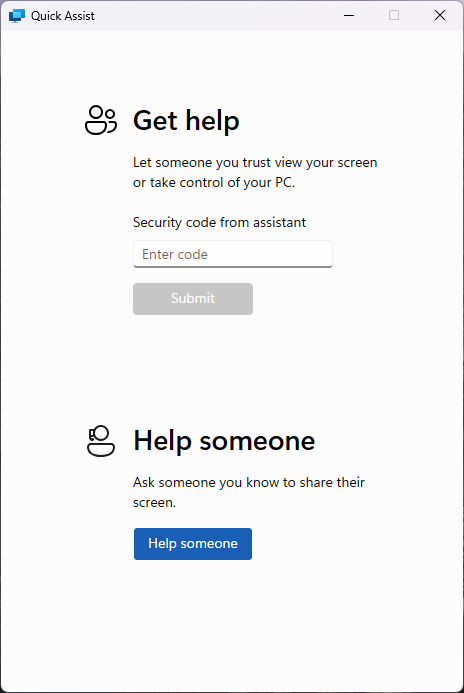
### 3. Enter the Support Code

Once the Quick Assist window appears, you’ll see a prompt asking for a code. Your IT support engineer will provide this code.

[![Screenshot 2024-11-26 095816.png](https://kb.9.technology/uploads/images/gallery/2024-11/scaled-1680-/mg3xgya5I4nrxC6Q-screenshot-2024-11-26-095816.png)](https://kb.9.technology/uploads/images/gallery/2024-11/mg3xgya5I4nrxC6Q-screenshot-2024-11-26-095816.png)
---

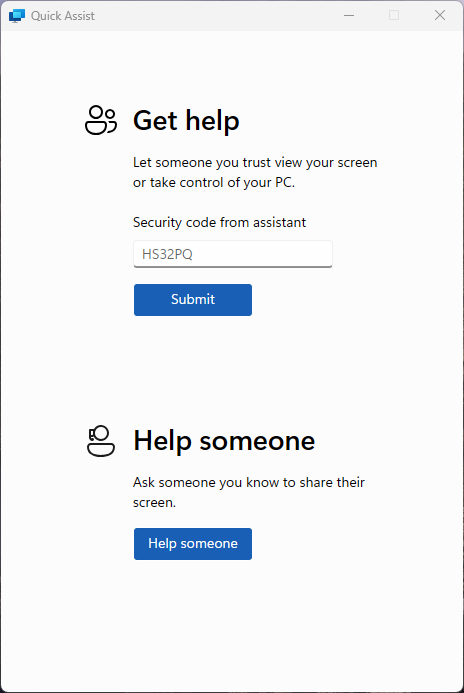
### 4. Submit the Code

Type in the code and click **Submit** to initiate the remote session.

[![Screenshot 2024-11-26 100426.png](https://kb.9.technology/uploads/images/gallery/2024-11/scaled-1680-/OsnuIlUQCnXIFF64-screenshot-2024-11-26-100426.png)](https://kb.9.technology/uploads/images/gallery/2024-11/OsnuIlUQCnXIFF64-screenshot-2024-11-26-100426.png)
---

### 5. Accept the Remote Session

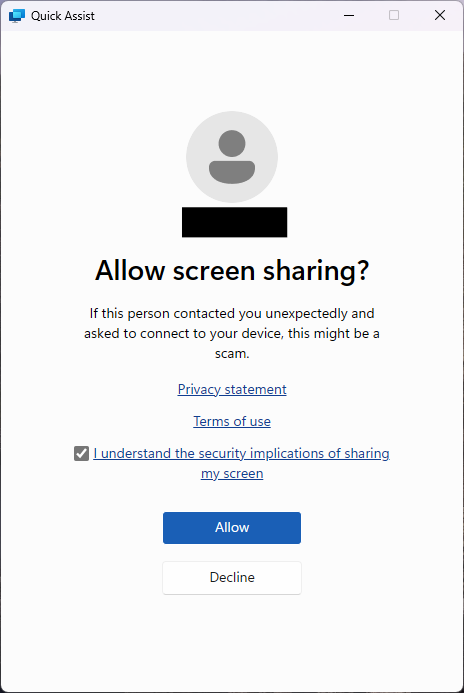
Quick Assist will go through a brief loading screen, followed by a prompt with a checkbox. Tick the box and click **Accept** to confirm the remote session.

[![Screenshot 2024-11-26 100514.png](https://kb.9.technology/uploads/images/gallery/2024-11/scaled-1680-/ooVHsw0vbP33bDut-screenshot-2024-11-26-100514.png)](https://kb.9.technology/uploads/images/gallery/2024-11/ooVHsw0vbP33bDut-screenshot-2024-11-26-100514.png)
---

### 6. Grant Control to the Support Engineer

Finally, your support engineer will request control of your machine. A toolbar will appear at the top of your screen. Click **Allow** to grant them control.

[![Screenshot 2024-11-26 100648.png](https://kb.9.technology/uploads/images/gallery/2024-11/scaled-1680-/zUBu1LZ1U1SopmbR-screenshot-2024-11-26-100648.png)](https://kb.9.technology/uploads/images/gallery/2024-11/zUBu1LZ1U1SopmbR-screenshot-2024-11-26-100648.png)

---

# Microsoft 365: Setting up Two Factor Authentication (iPhone)

---

<span style="font-size: 18pt;"> Step 1</span>

1. <span style="font-size: 12pt; line-height: 107%; font-family: 'Open Sans', sans-serif; color: #000000;"><span style="font: 7pt 'Times New Roman';"> </span></span><span style="font-size: 12pt; line-height: 107%; font-family: 'Open Sans', sans-serif; color: #000000;">Navigate to your phones App Store and search for **<span style="font-family: 'Open Sans', sans-serif;">Microsoft Authenticator app</span>**. The search results should have found the Authenticator app, Click **Download.**</span>

*<span style="font-size: 12pt; line-height: 107%;">The “Authenticator” app should now appear on your home screen. You will need this for step 3.</span>*

<span style="font-size: 12pt; line-height: 107%;">![1.png](https://crm.9.technology/media/bakr-altimimi/TFA/1.png)</span>

<span style="font-size: 12pt; line-height: 107%;">![iphone app store](https://crm.9.technology/media/bakr-altimimi/TFA/2.png)</span>

---

### <span style="font-size: 18pt;"> Step 2</span>

<span style="font-size: 12pt; line-height: 107%; font-family: 'Open Sans', sans-serif; color: #000000;"> 1.<span style="font: 7pt 'Times New Roman';"> </span></span><span style="font-size: 12pt; line-height: 107%; font-family: 'Open Sans', sans-serif; color: #000000;">Using your computer, open a browser and navigate to </span><span style="font-size: 12pt; line-height: 107%;">[<span style="font-family: 'Open Sans', sans-serif;">https://login.microsoftonline.com</span>](https://login.microsoftonline.com/)</span><u><span style="font-size: 12pt; line-height: 107%; font-family: 'Open Sans', sans-serif; color: #000000;">.</span></u>

<span style="font-size: 12pt; line-height: 107%; font-family: 'Open Sans', sans-serif; color: #000000;"> 2.<span style="font: 7pt 'Times New Roman';"> </span></span><span style="font-size: 12pt; line-height: 107%; font-family: 'Open Sans', sans-serif; color: #000000;">Log into Office 365 online with your company email address and password. Eg: zak@support9.com.</span>

*<span style="font-size: 12pt; line-height: 107%; font-family: 'Open Sans', sans-serif; color: #000000;">Your IT Administrator will have already enabled 2FA on your **Work Microsoft user account,** so you should receive the prompt shown below asking you to setup 2FA (Two Factor Authentication).</span>*

![KB-2FA-201](https://crm.9.technology/media/bakr-altimimi/TFA/3.png)

![mobile-app-security](https://crm.9.technology/media/bakr-altimimi/TFA/4.png)

<span style="font-size: 12pt; line-height: 107%; font-family: 'Open Sans', sans-serif; color: #000000;"> 3.<span style="font: 7pt 'Times New Roman';"> </span></span><span style="font-size: 12pt; line-height: 107%; font-family: 'Open Sans', sans-serif; color: #000000;">You will then arrive on the **Additional Security Verification** page, asking you which security method you would like to use.</span>

<span style="font-size: 12pt; line-height: 107%; font-family: 'Open Sans', sans-serif; color: #000000;"> 4.<span style="font: 7pt 'Times New Roman';"> </span></span><span style="font-size: 12pt; line-height: 107%; font-family: 'Open Sans', sans-serif; color: #000000;">Select the **Mobile app** option from the drop-down list and select **Use verification code** from the list of choices, then **Click** **Set up**.</span>

*<span style="font-size: 12pt; line-height: 107%; font-family: 'Open Sans', sans-serif; color: #000000;">Once this has been completed you will be displayed with the message below.</span>*

![configure mobile app](https://crm.9.technology/media/bakr-altimimi/TFA/5.png)

---

### <span style="font-size: 18pt;"> Step 3</span>

<span style="font-size: 12pt; line-height: 107%; font-family: 'Open Sans', sans-serif; color: #000000;"> 1.<span style="font: 7pt 'Times New Roman';"> </span></span><span style="font-size: 12pt; line-height: 107%; font-family: 'Open Sans', sans-serif; color: #000000;">Now, open the **Microsoft Authenticator app** on your phone</span>

<span style="font-size: 12pt; line-height: 107%; font-family: 'Open Sans', sans-serif; color: #000000;"> 2.<span style="font: 7pt 'Times New Roman';"> </span></span><span style="font-size: 12pt; line-height: 107%; font-family: 'Open Sans', sans-serif; color: #000000;">Skip any Introduction screens the app may present, until the **Ready to add your first account?** screen or similar appears.</span>

<span style="font-size: 12pt; line-height: 107%; font-family: 'Open Sans', sans-serif; color: #000000;"> 3.<span style="font: 7pt 'Times New Roman';"> </span></span><span style="font-size: 12pt; line-height: 107%; font-family: 'Open Sans', sans-serif; color: #000000;">Select **Add account** or "**+**" icon on the top right corner of the app screen.</span>

<span style="font-size: 12pt; line-height: 107%; font-family: 'Open Sans', sans-serif; color: #000000;">4.<span style="font: 7pt 'Times New Roman';"> </span></span><span style="font-size: 12pt; line-height: 107%; font-family: 'Open Sans', sans-serif; color: #000000;">Select the **Work or school account** option</span>

![2fa add account](https://crm.9.technology/media/bakr-altimimi/TFA/6.png)

<span style="font-size: 12pt; line-height: 107%; font-family: 'Open Sans', sans-serif; color: #000000;"> 5.<span style="font: 7pt 'Times New Roman';"> </span></span><span style="font-size: 12pt; line-height: 107%; font-family: 'Open Sans', sans-serif; color: #000000;">You may be asked to allow the app to use your phone’s camera, click **OK** to allow this.</span>

*<span style="font-size: 12pt; line-height: 107%; font-family: 'Open Sans', sans-serif; color: #000000;">You will be presented with a screen called **Scan QR code** with a square camera box in the middle of the screen.</span>*

![KB-2FA-204](https://crm.9.technology/media/bakr-altimimi/TFA/7.png)

<span style="font-size: 12pt; line-height: 107%; font-family: 'Open Sans', sans-serif; color: #000000;"> 6.<span style="font: 7pt 'Times New Roman';"> </span></span><span style="font-size: 12pt; line-height: 107%; font-family: 'Open Sans', sans-serif; color: #000000;">Lift the mobile device so that the QR code on your computer screen sits inside the Scan QR code camera square.</span>

<span style="font-size: 12pt; line-height: 107%; font-family: 'Open Sans', sans-serif; color: #000000;">![](https://crm.9.technology/media/bakr-altimimi/TFA/8.png)</span>

<span style="font-size: 12pt; line-height: 107%; font-family: 'Open Sans', sans-serif; color: #000000;">7.<span style="font: 7pt 'Times New Roman';"> </span></span><span style="font-size: 12pt; line-height: 107%; font-family: 'Open Sans', sans-serif; color: #000000;">As soon as the Authenticator app has scanned the QR code the following screen will appear on the computer screen. **Set up** button is greyed out and the **Next** button is highlighted.</span>

*<span style="font-size: 12pt; line-height: 107%; font-family: 'Open Sans', sans-serif; color: #000000;">On the Authenticator app on your mobile phone a new account will have been created, displaying 6-digit number that updates every 30 seconds. This ever-changing number provides the second authentication factor required for 2FA.</span>*

<span style="font-size: 12pt; line-height: 107%; font-family: 'Open Sans', sans-serif; color: #000000;"> 8.<span style="font: 7pt 'Times New Roman';"> </span></span><span style="font-size: 12pt; line-height: 107%; font-family: 'Open Sans', sans-serif; color: #000000;">Click **Next** on your computer screen.</span>

<span style="font-size: 12pt; line-height: 107%; font-family: 'Open Sans', sans-serif; color: #000000;"> 9.<span style="font: 7pt 'Times New Roman';"> </span></span><span style="font-size: 12pt; line-height: 107%; font-family: 'Open Sans', sans-serif; color: #000000;">You will then be prompted for the 6-digit verification code from the Authenticator app. </span>

![enter verification code](https://crm.9.technology/media/bakr-altimimi/TFA/9.png)

<span style="font-family: 'Open Sans', sans-serif; color: #000000;"> 10.<span style="font: 7pt 'Times New Roman';"> </span></span><span style="font-family: 'Open Sans', sans-serif; color: #000000;">Enter the six-digit code displayed on your mobile phone Authenticator app and click **<span style="font-family: 'Open Sans', sans-serif;">Verify</span>**. </span>

![2FA phone number](https://crm.9.technology/media/bakr-altimimi/TFA/10.png)

<span style="font-size: 12pt; line-height: 107%; font-family: 'Open Sans', sans-serif; color: #000000;"> </span><span style="font-size: 12pt; line-height: 107%; font-family: 'Open Sans', sans-serif; color: #000000;">11.<span style="font: 7pt 'Times New Roman';"> </span></span><span style="font-size: 12pt; line-height: 107%; font-family: 'Open Sans', sans-serif; color: #000000;">Select the country from the drop-down list and then enter your mobile telephone number. Click **Next**.</span>

Thanks for reading this Article, if you are still experiencing issues and nothing has been resolved then please contact the support team.

# Microsoft 365: SharePoint: SharePoint Via Network Drive

Part 1 – SharePoint site

 1)<span style="font: 7pt 'Times New Roman';"> </span>Open your web browser Chrome, Edge..etc

 2)<span style="font: 7pt 'Times New Roman';"> </span>Search “[www.Office.com](http://www.Office.com)” in the URL bar at the top (Search bar)

 3)<span style="font: 7pt 'Times New Roman';"> </span>Top Right, Click “Sign in” \***if you already not signed in**

 4)<span style="font: 7pt 'Times New Roman';"> </span>Top Left, Click on the 3x3 gird

 5)<span style="font: 7pt 'Times New Roman';"> </span>Choose “**SharePoint**”

 *6)<span style="font: 7pt 'Times New Roman';"> </span>*Find the SharePoint Site that has the files and folders. ***A SharePoint site is a centralized storage space for all/selected staff users to access files and folders\****

**Note: if the SharePoint site you are looking for doesn’t appear in the search bar, then you might need to ask for permission from your manager\***

 7)<span style="font: 7pt 'Times New Roman';"> </span>Once you are inside the site, Click “**Documents**”.

 8)<span style="font: 7pt 'Times New Roman';"> </span>Copy the URL from the URL address bar. **Do not copy the entire URL, only copy to https://name-of-you-domain.Sharepoint.com**

Part 2 Internet Options

 1)<span style="font: 7pt 'Times New Roman';"> </span>Open Internet options, Click Windows key + S

 2)<span style="font: 7pt 'Times New Roman';"> </span>Type “ Internet options”

 3)<span style="font: 7pt 'Times New Roman';"> </span>Inside Internet options, Select the Security tab at the top.

 4)<span style="font: 7pt 'Times New Roman';"> </span>Click on “Trusted Sites”

 5)<span style="font: 7pt 'Times New Roman';"> </span>Click on “Sites” Underneath “Trusted Sites”

 6)<span style="font: 7pt 'Times New Roman';"> </span>Paste the URL address inside the “Add this website…” Field.

 7)<span style="font: 7pt 'Times New Roman';"> </span>Click “Add”, then close.

Part 3 Microsoft Edge

We will need to configure edge to allow the old internet explore to access that URL address or else the network drive will not work.

 1)<span style="font: 7pt 'Times New Roman';"> </span>Open Microsoft Edge,

 2)<span style="font: 7pt 'Times New Roman';"> </span>Click on the three dots at the top.

 3)<span style="font: 7pt 'Times New Roman';"> </span>Click on “**Settings**”

 4)<span style="font: 7pt 'Times New Roman';"> </span>On the left of the screen, Select “Default Browser”

 5)<span style="font: 7pt 'Times New Roman';"> </span>Ensure “Allow sites to be reloaded…” is set to allow.

 6)<span style="font: 7pt 'Times New Roman';"> </span>Go back to the SharePoint site from part 1, and copy the link again but this time add the additional information.

<span style="color: rgb(0,0,0);">  
</span>

 7)<span style="font: 7pt 'Times New Roman';"> </span>Go back to Edge, Underneath Allow , Click on “Add”

 8)<span style="font: 7pt 'Times New Roman';"> </span>Paste again the URL address.

 9)<span style="font: 7pt 'Times New Roman';"> </span>Click on “Add”.

 10)<span style="font: 7pt 'Times New Roman';"> </span>In the search bar of edge, paste the same URL Link

1 11)<span style="font: 7pt 'Times New Roman';"> </span>Sign into your Microsoft account

 12)<span style="font: 7pt 'Times New Roman';"> </span>If you see the below image then you have done it correct.

Part 3 Network Map

1 1)<span style="font: 7pt 'Times New Roman';"> </span>Open File Explorer, Click Window key + S

 2)<span style="font: 7pt 'Times New Roman';"> </span>Type “**File Explorer**”

 3)<span style="font: 7pt 'Times New Roman';"> </span>Right Click “**This PC**”

 *4)<span style="font: 7pt 'Times New Roman';"> </span>****<span style="font: 7pt 'Times New Roman';"> </span>***Paste in the URL address once more in the folder field. ***Optionally you can choose the Drive Letter.***

 5)<span style="font: 7pt 'Times New Roman';"> </span>Click Finish and the SharePoint site Document should appear like a Network Drive.

# OneDrive: OneDrive Syncing problems

**The Article demonstrates how to quit &amp; Re-open OneDrive in-case of any syncing issues.**

**✔ This often clears stuck sync queues without restarting the whole PC.**

---

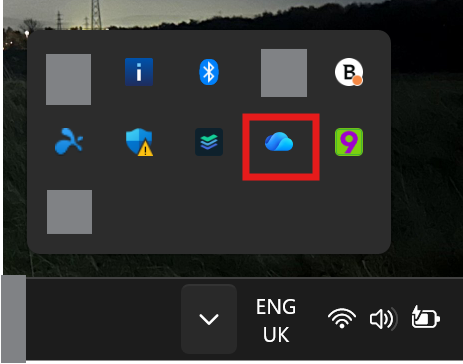
### 1. Right-click the OneDrive cloud icon

[![image.png](https://kb.9.technology/uploads/images/gallery/2025-12/scaled-1680-/GaH5mWuRjGfk1ouz-image.png)](https://kb.9.technology/uploads/images/gallery/2025-12/GaH5mWuRjGfk1ouz-image.png)
---

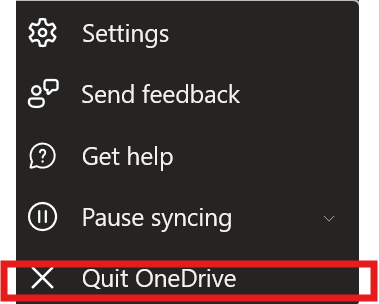
### 2. Click **Quit OneDrive**

[![image.png](https://kb.9.technology/uploads/images/gallery/2025-12/scaled-1680-/ctqaULdMJ9QGC58A-image.png)](https://kb.9.technology/uploads/images/gallery/2025-12/ctqaULdMJ9QGC58A-image.png)
---

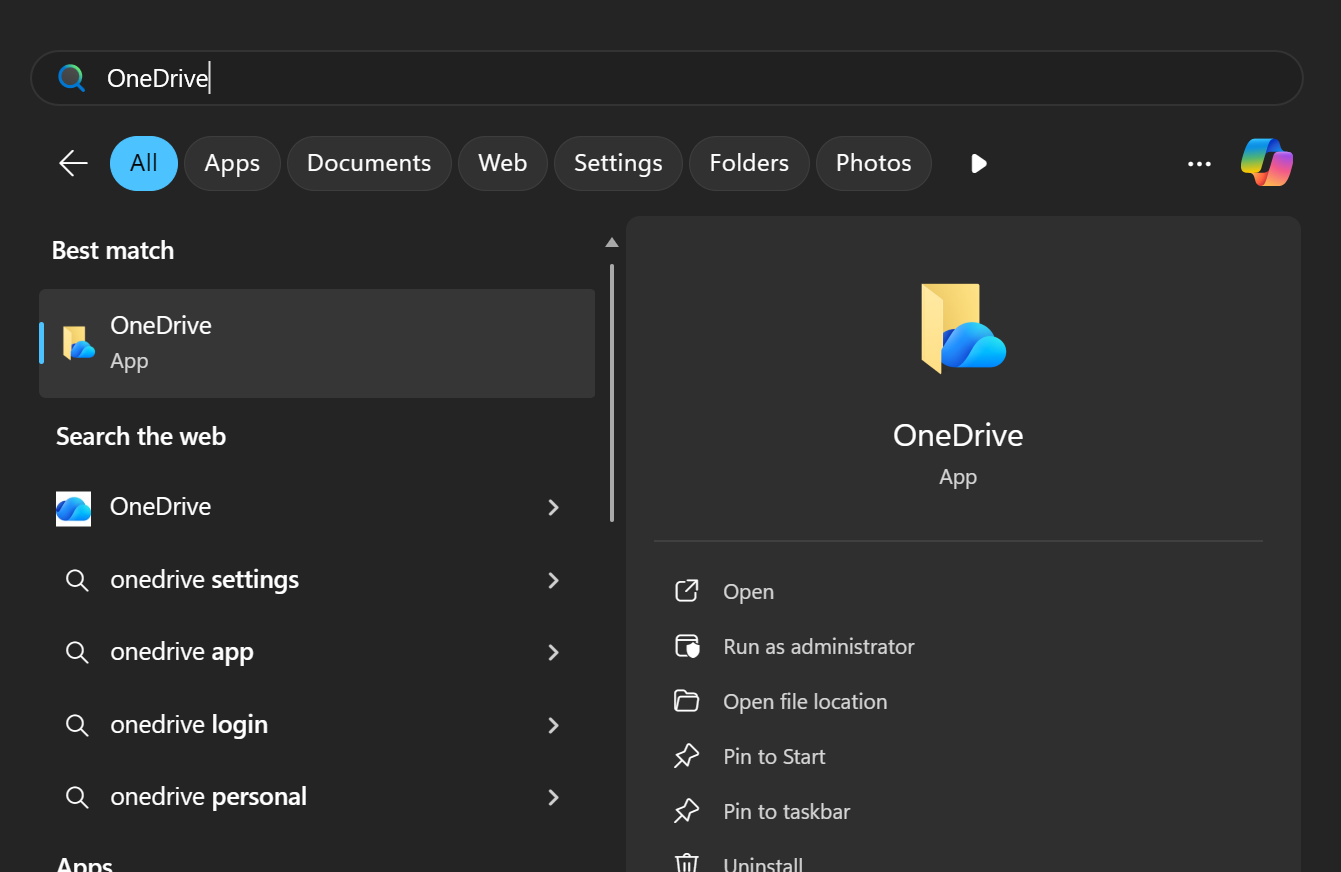
### 3. Start it again

- Press **Windows Key**
- Type **OneDrive**
- Open it

[![image.png](https://kb.9.technology/uploads/images/gallery/2025-12/scaled-1680-/D4A1pKw6XyIkkdBz-image.png)](https://kb.9.technology/uploads/images/gallery/2025-12/D4A1pKw6XyIkkdBz-image.png)
---